Let’s make the bot smarter together
- The bot only knows how to do the things we tell it to do.
- If we want it to do something new we will need to show it how to do it.
- Start with a freshly reset bot
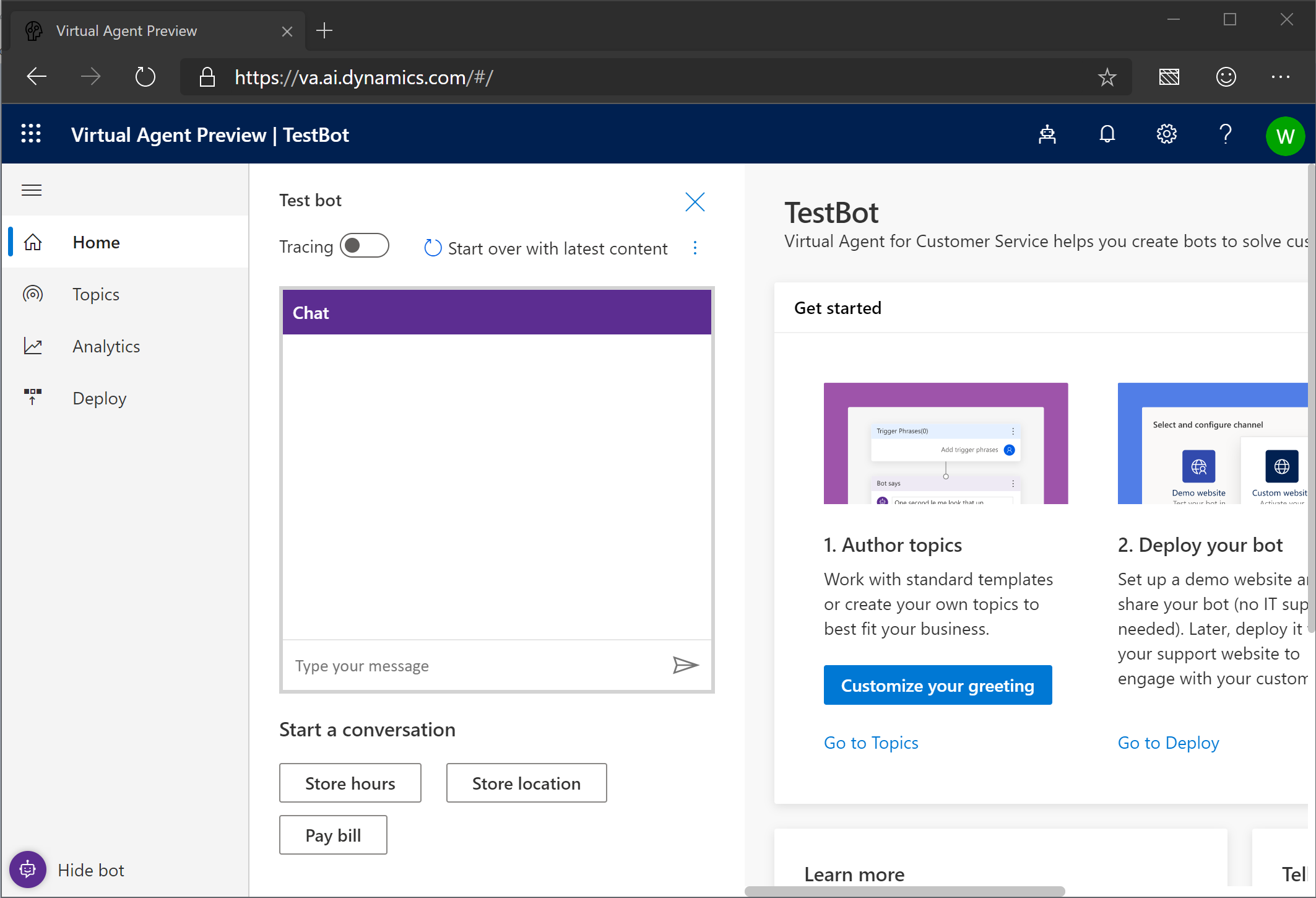
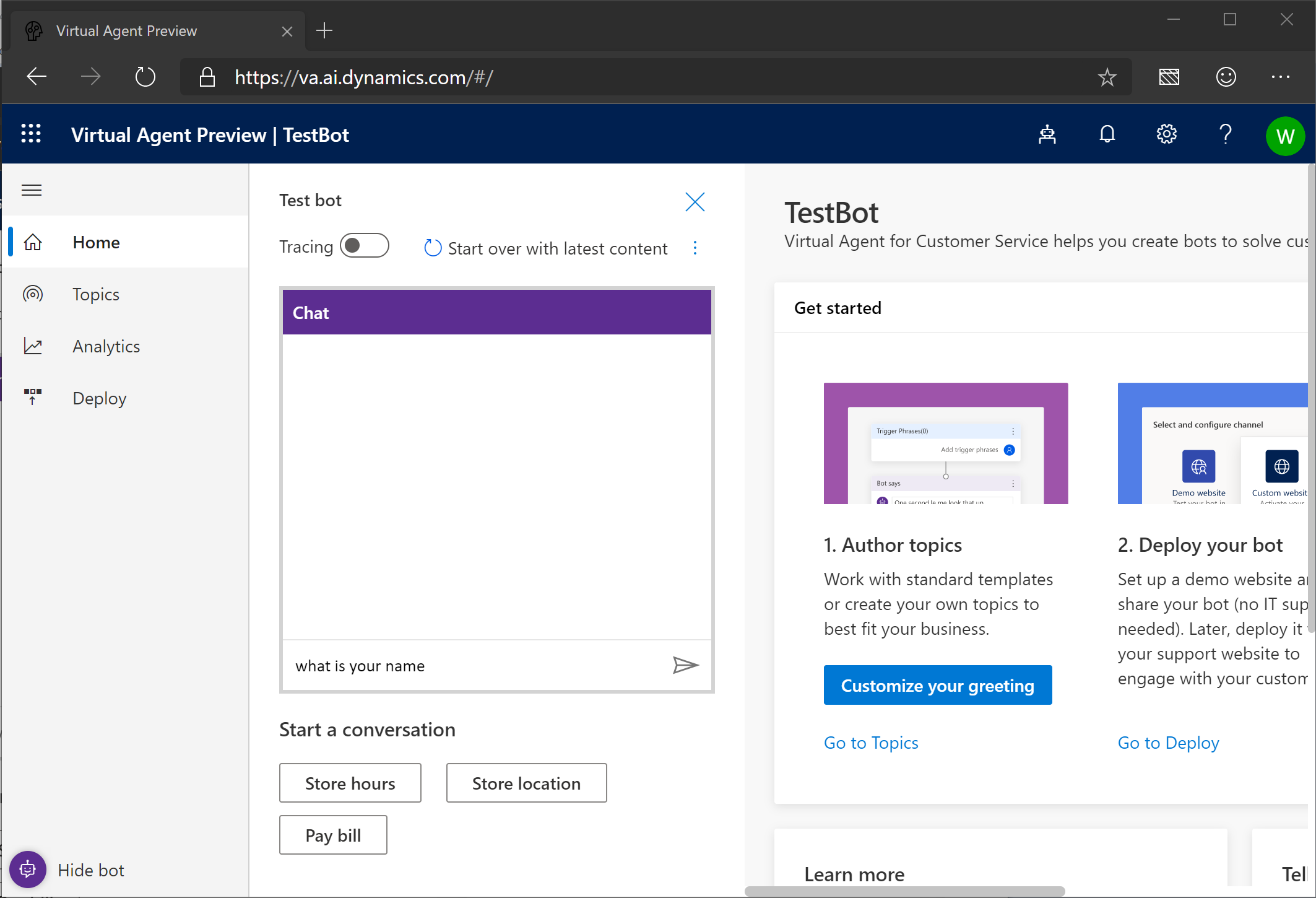
- Type in “who are you”
- Hit Enter or click Send
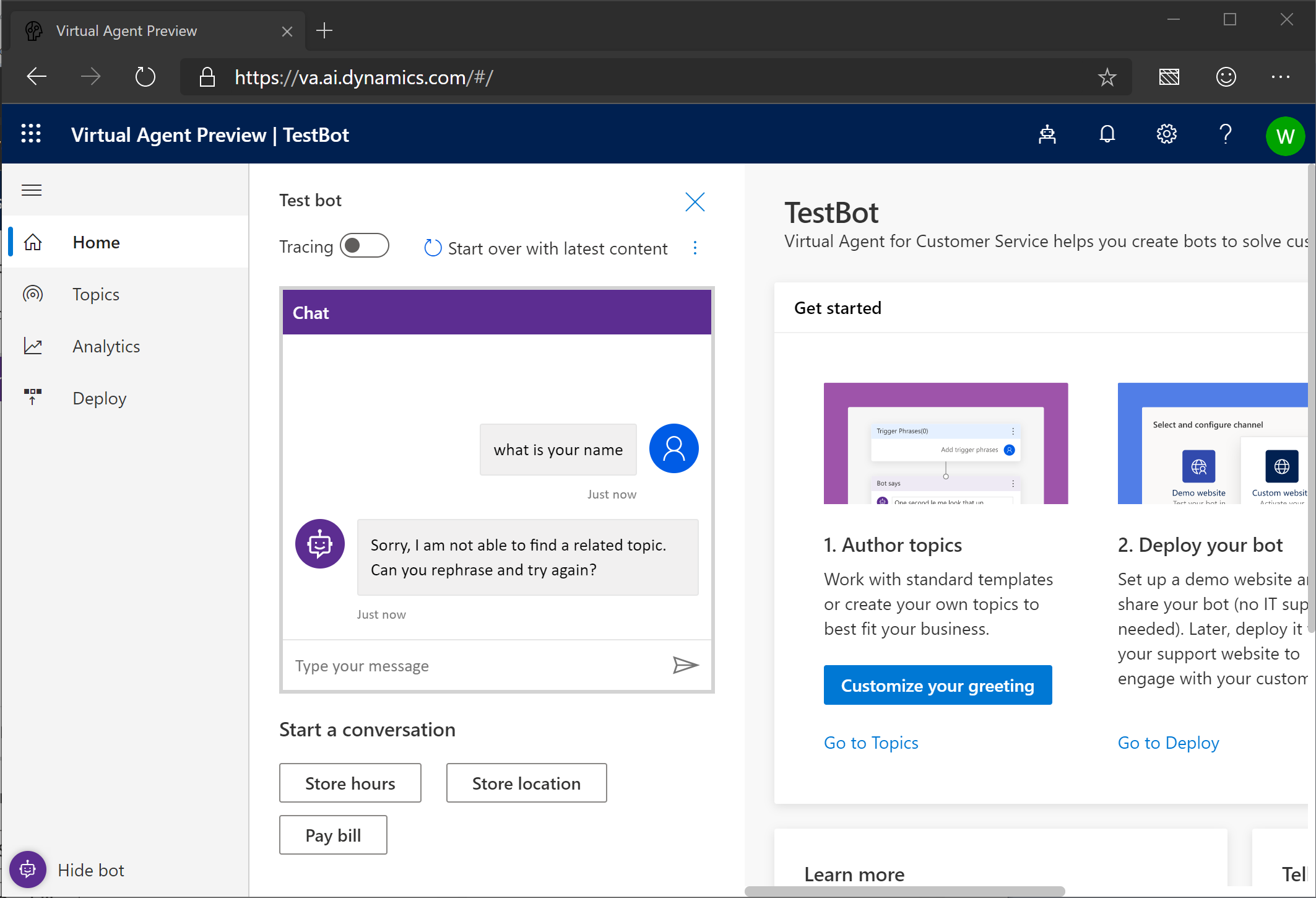
- The bot responds but that did not tell us the name of the bot! It looks like it is asking us to give it more information.
- Let’s make it smarter! Click on Topics on the left.
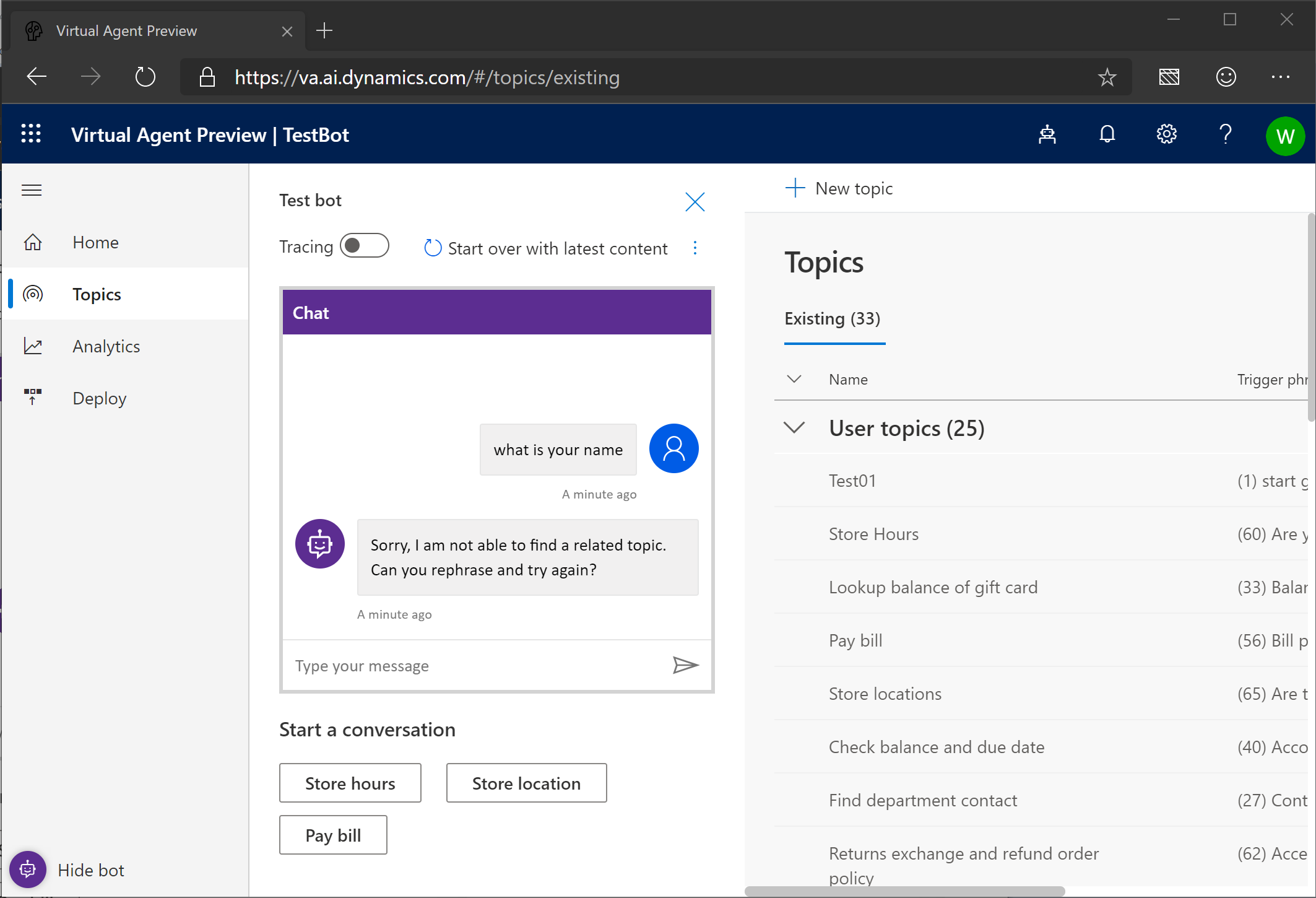
- Click Hide Bot to give us some room to work.
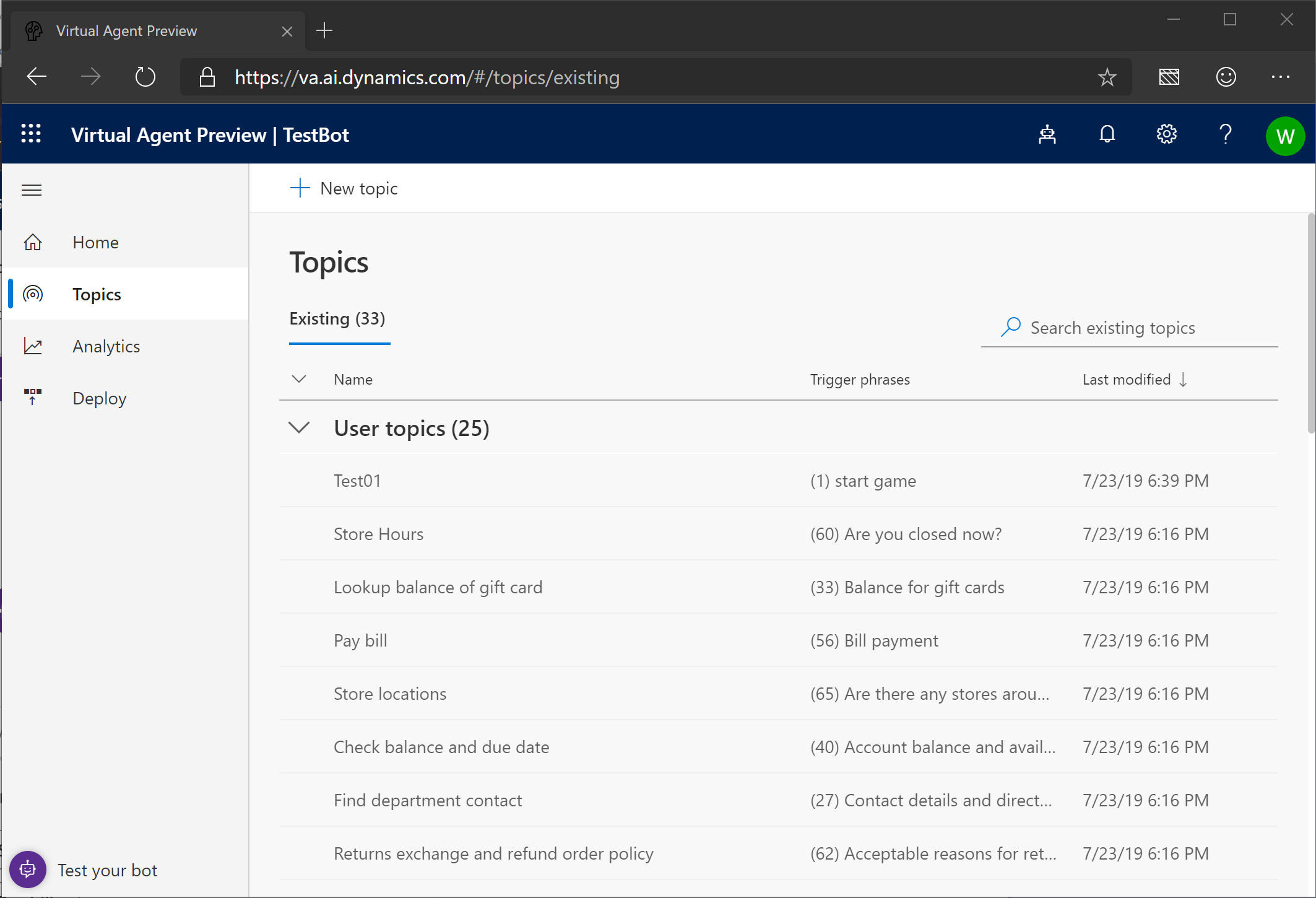
- Click New Topic to begin creating a new topic for the bot.
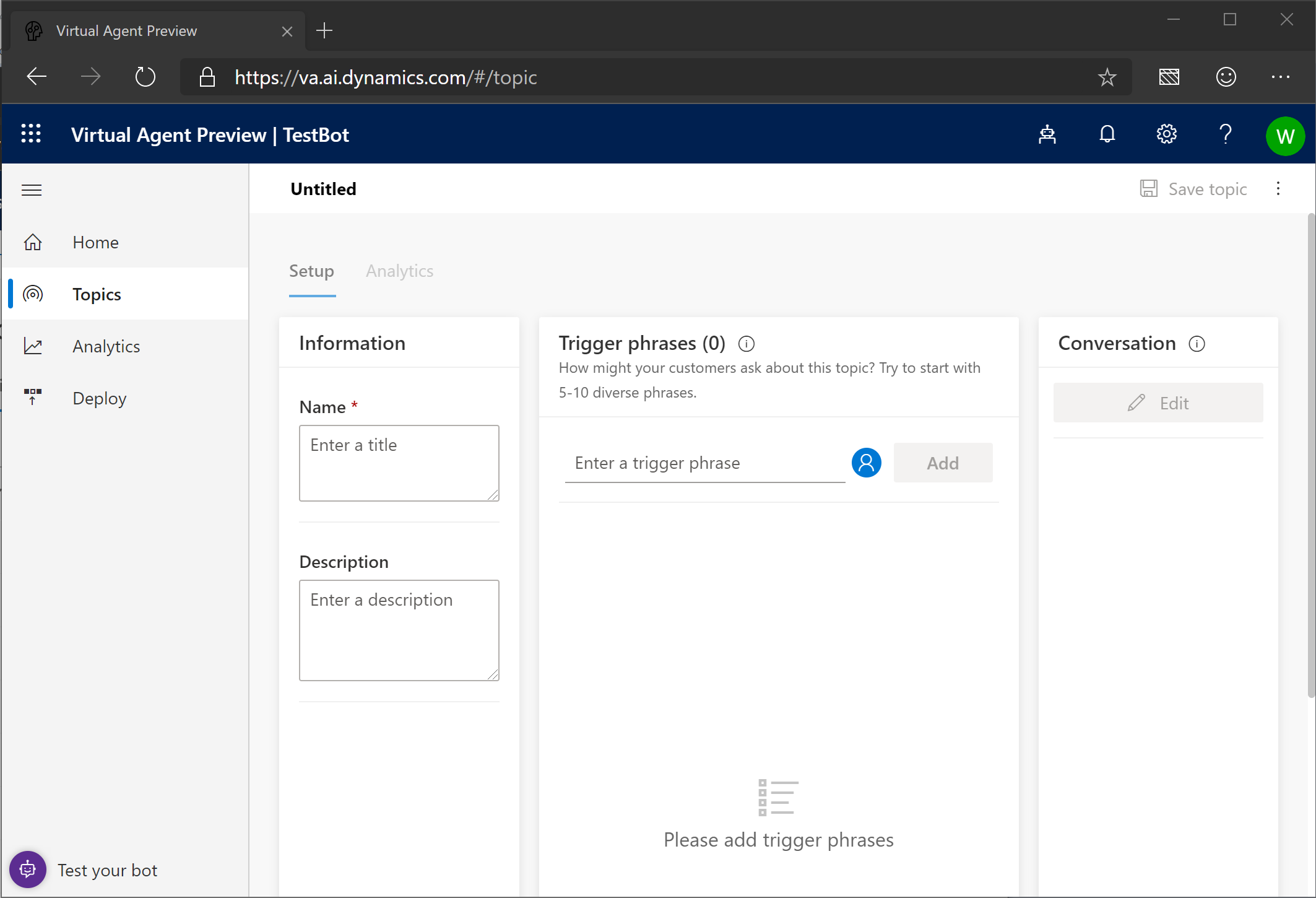
- Every topic needs a name so let’s use WhoAmI.
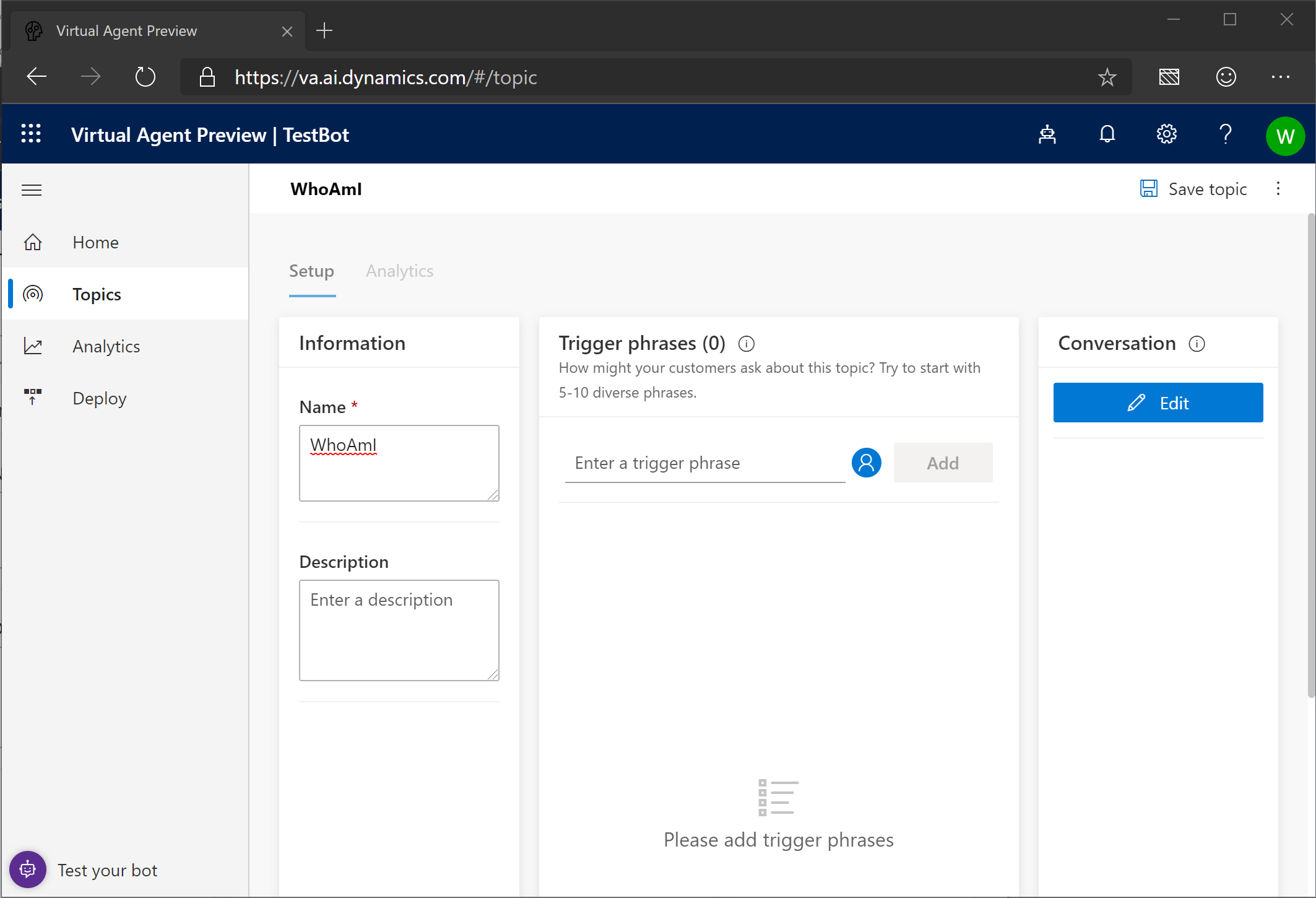
- Since we want the bot to tell us its name let’s put that into the Description box.
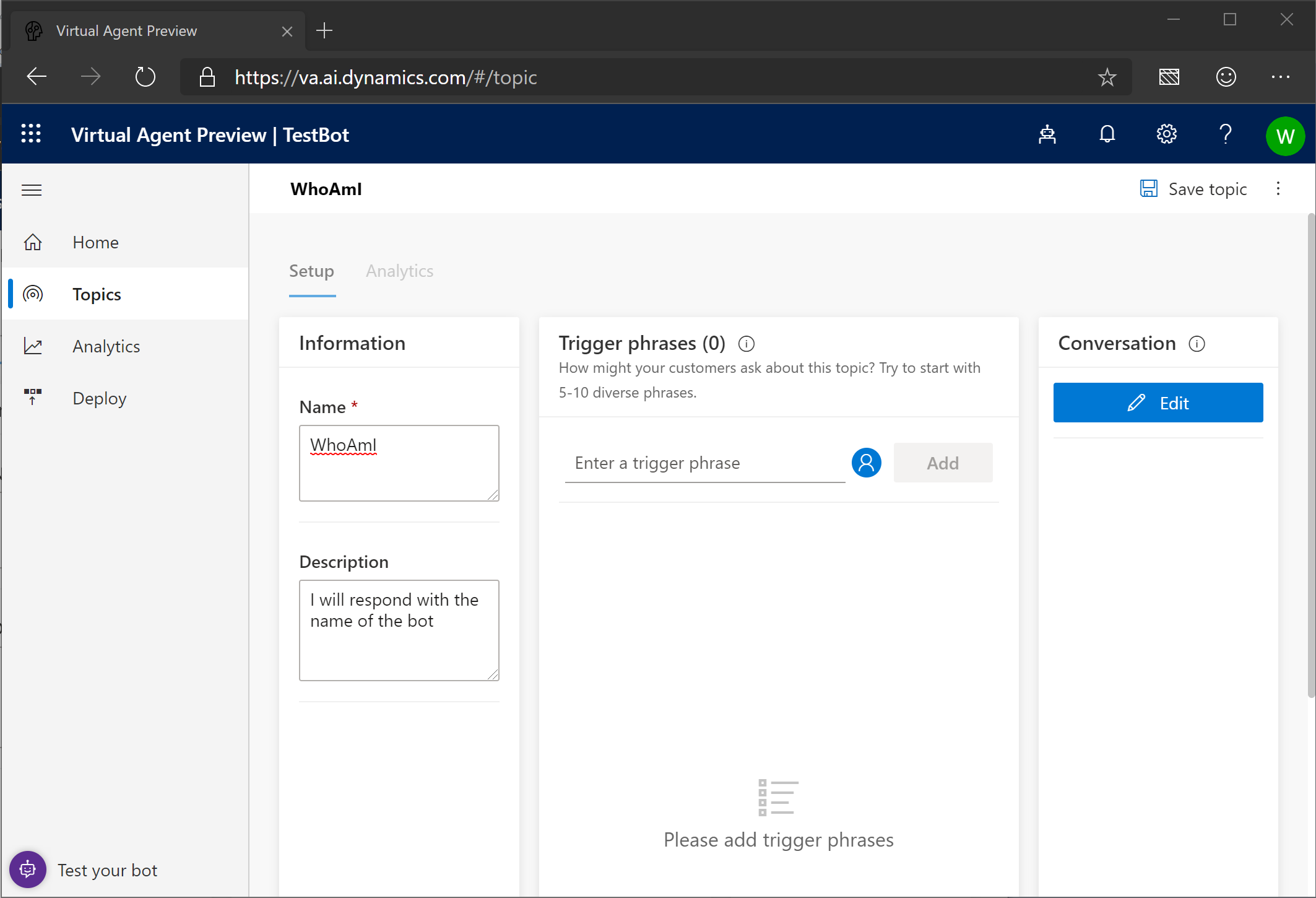
- What shoud we use as a trigger phrase to get the bot to start telling us its name? I’ll use “who are you”
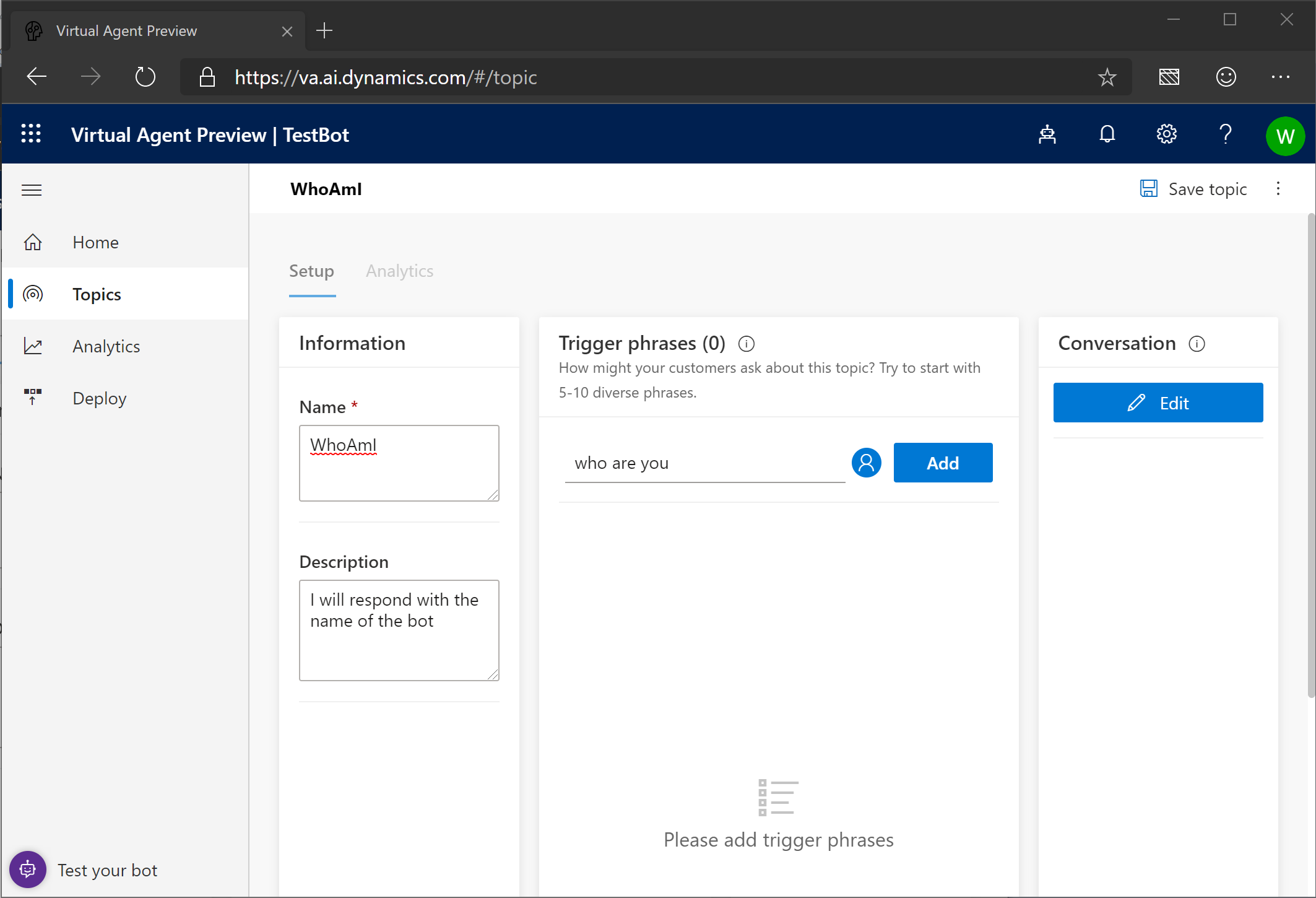
- Click Add to add it to the list of trigger phrases.
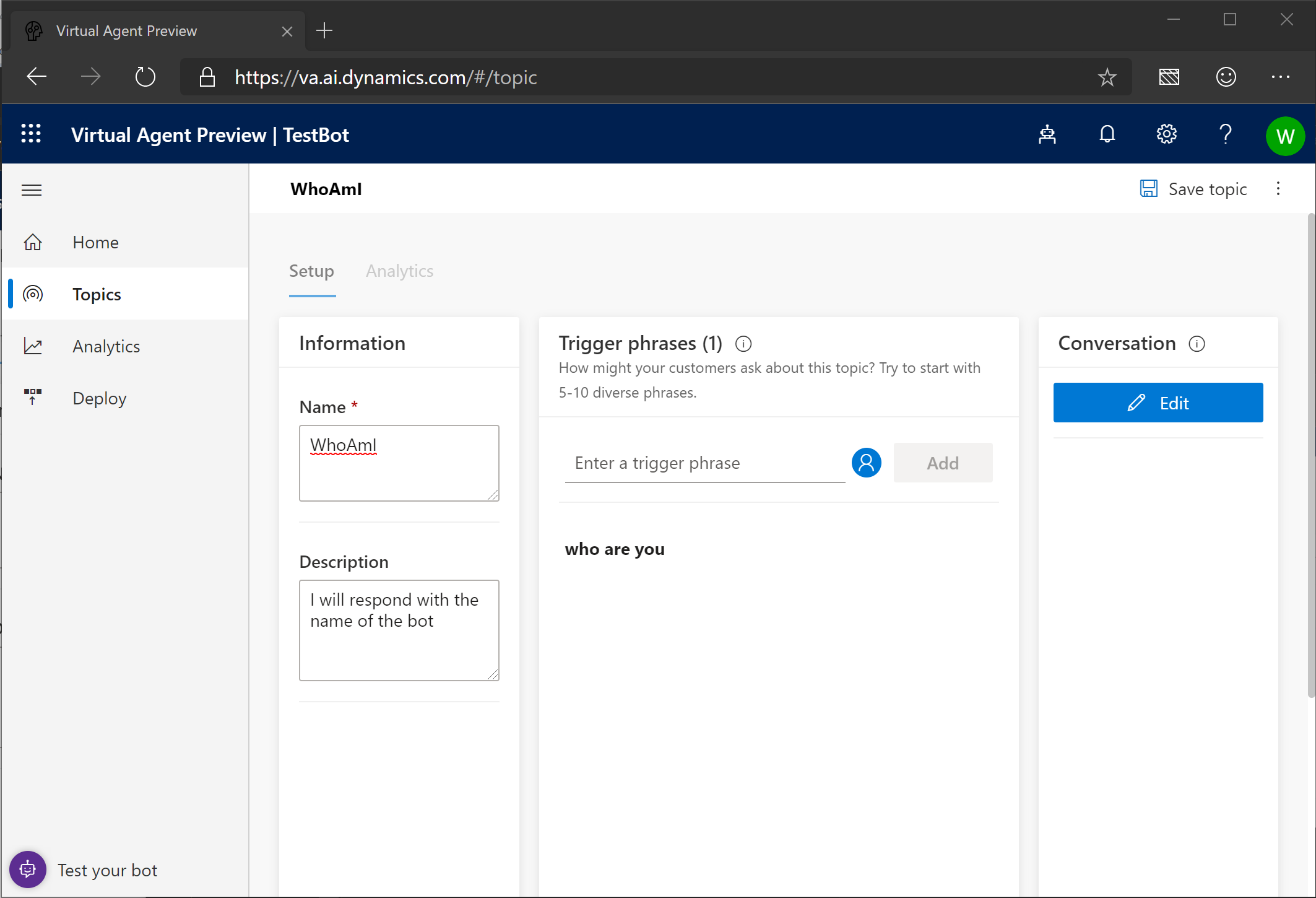
- Now that we have a way to start the topic, click the Edit button under the conversation.
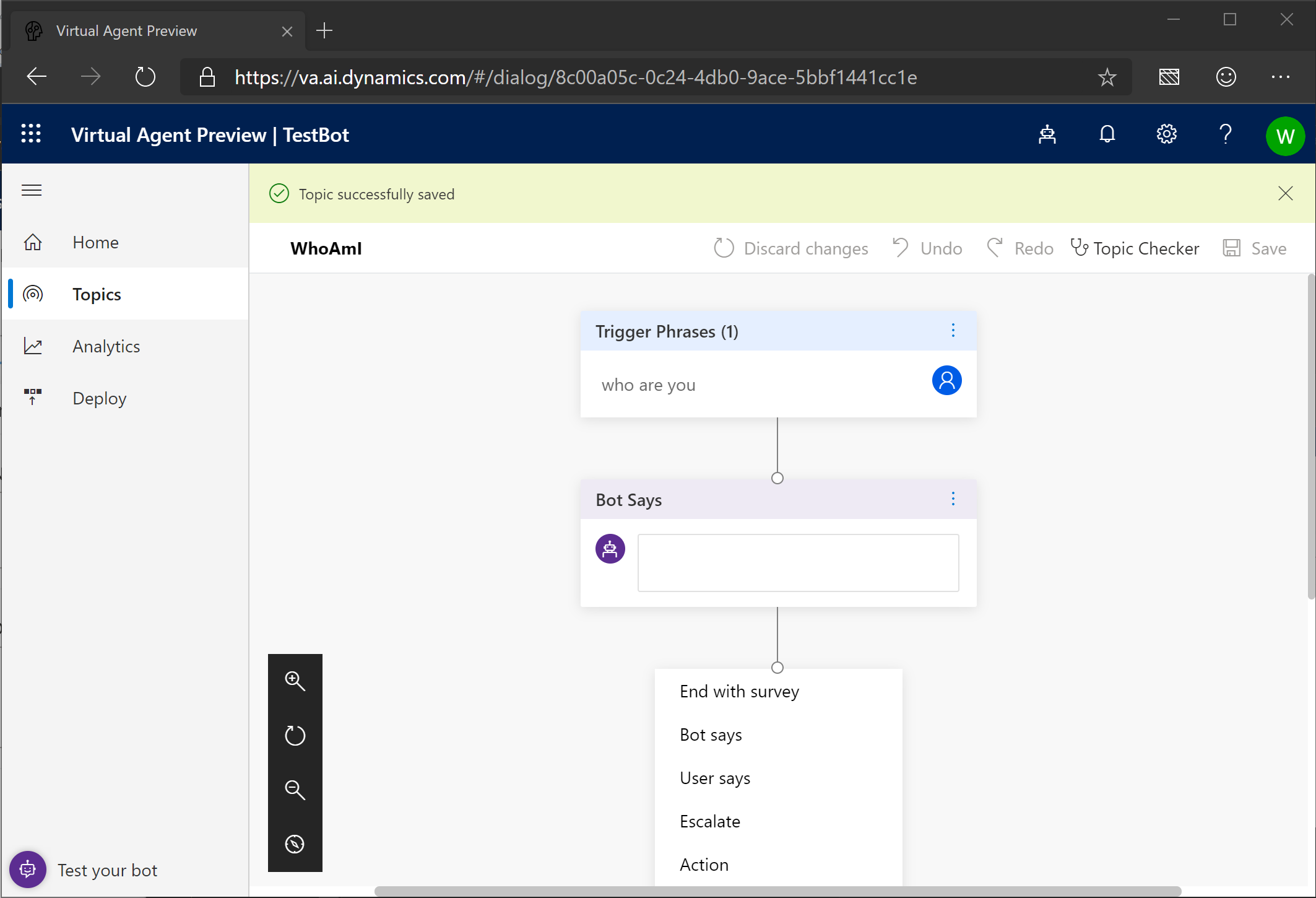
- The bot shows us our trigger phrase and then already loaded a conversation step to say something to the user. Type in “My name is TestBot”
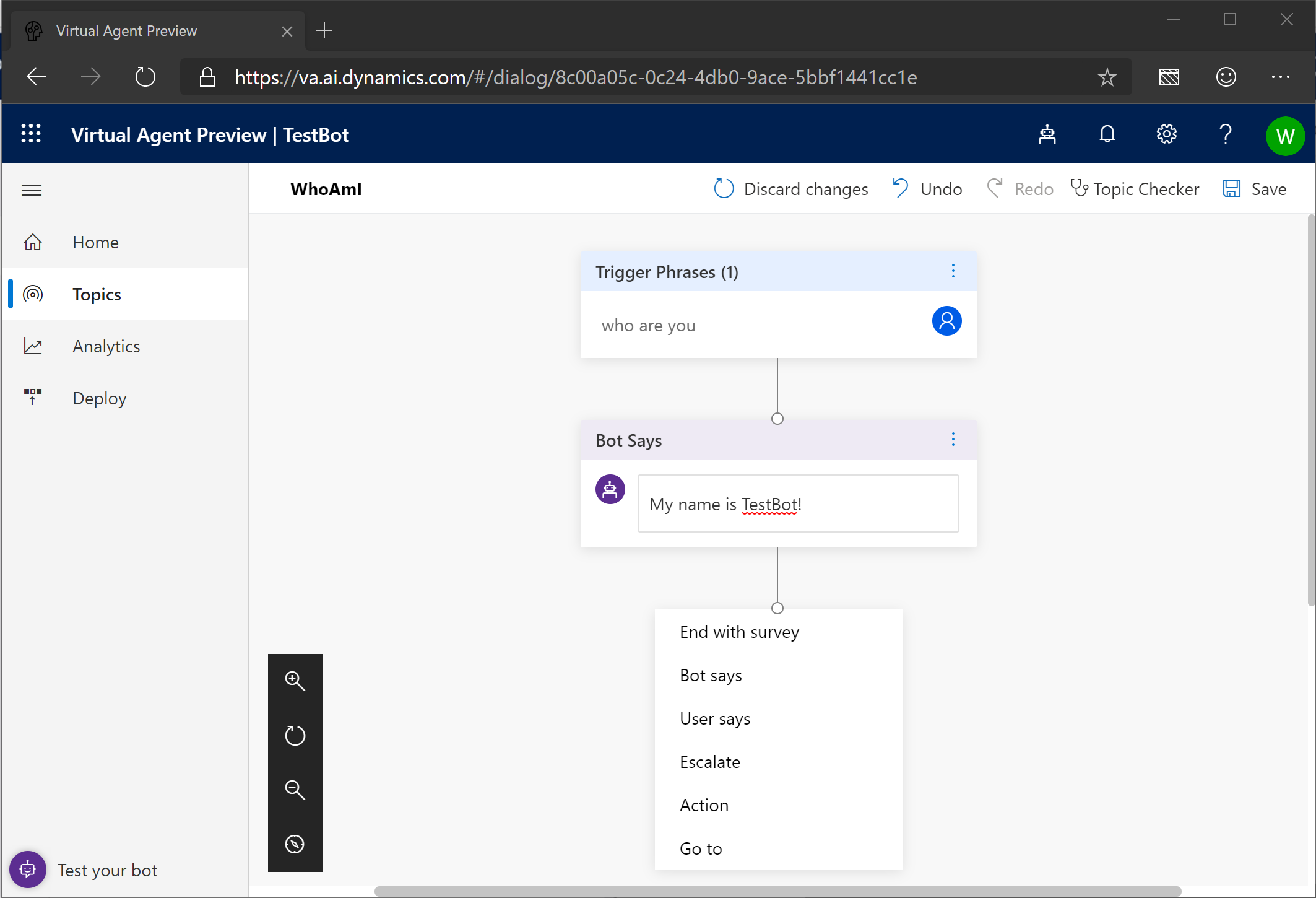
- All we wanted the bot to do was to tell us its name so let’s click Save.
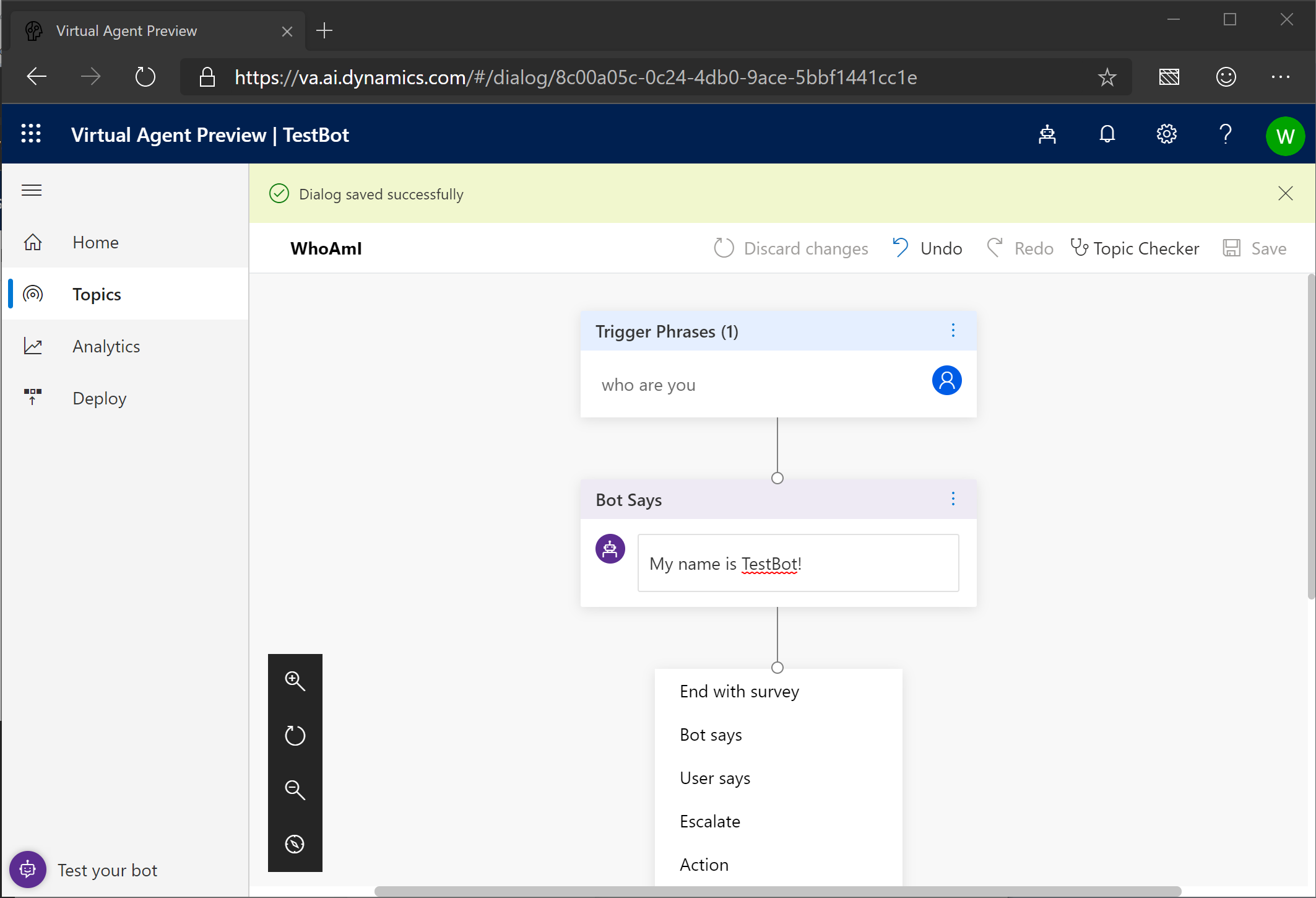
- OK. Time to test! Click “Test your bot” in the bottom left corner
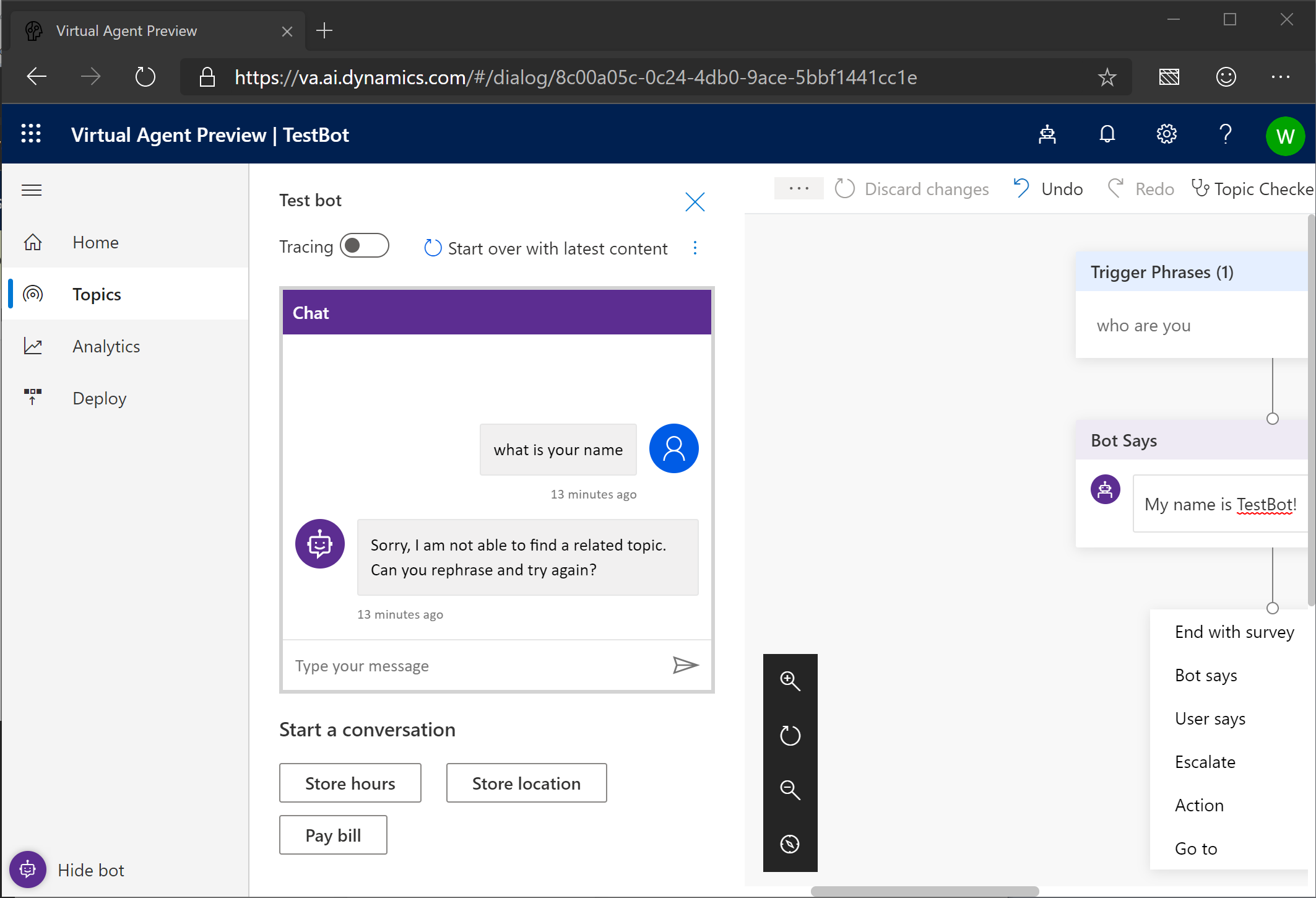
- Type in “who are you”
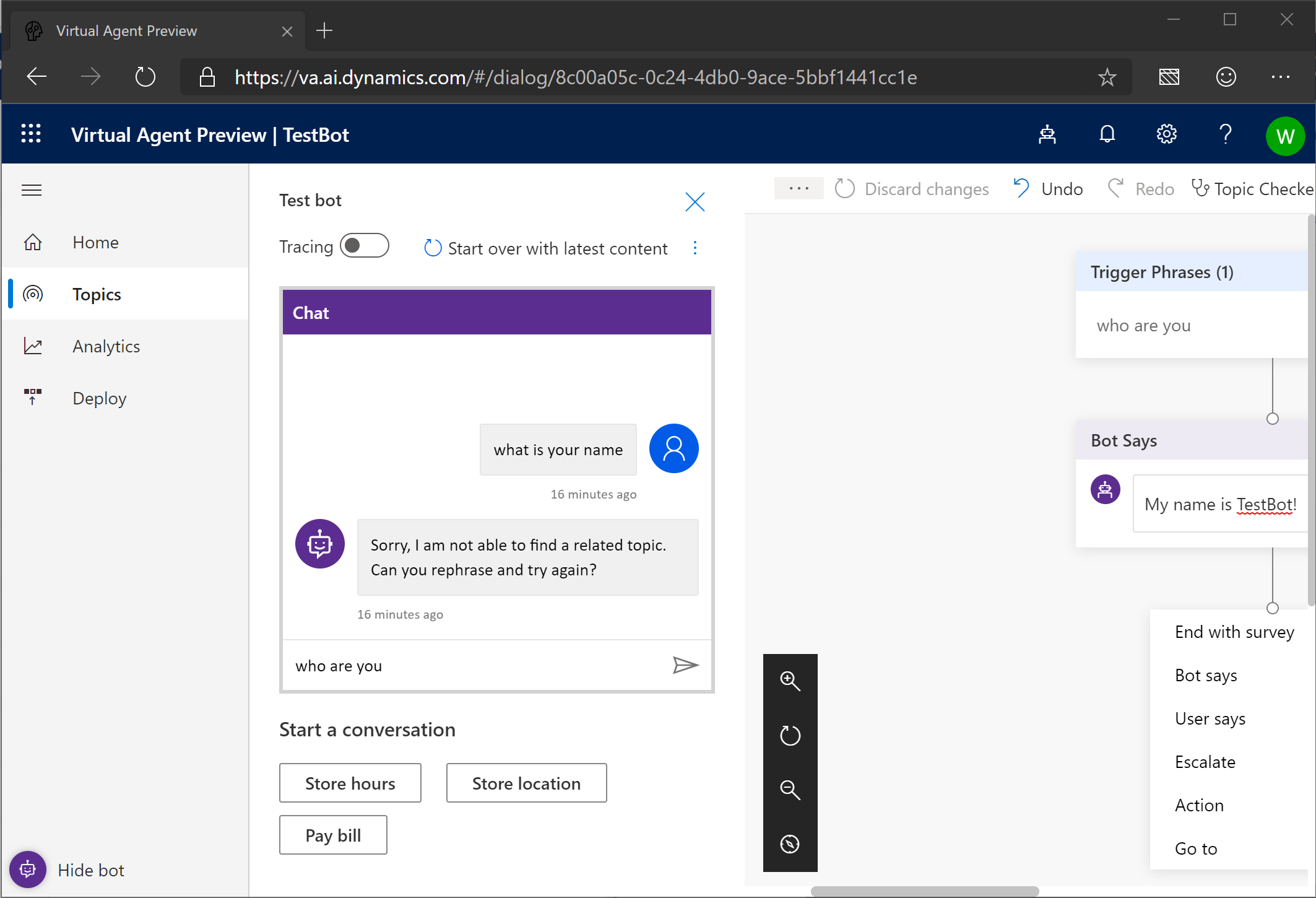
- Hit enter or click Send
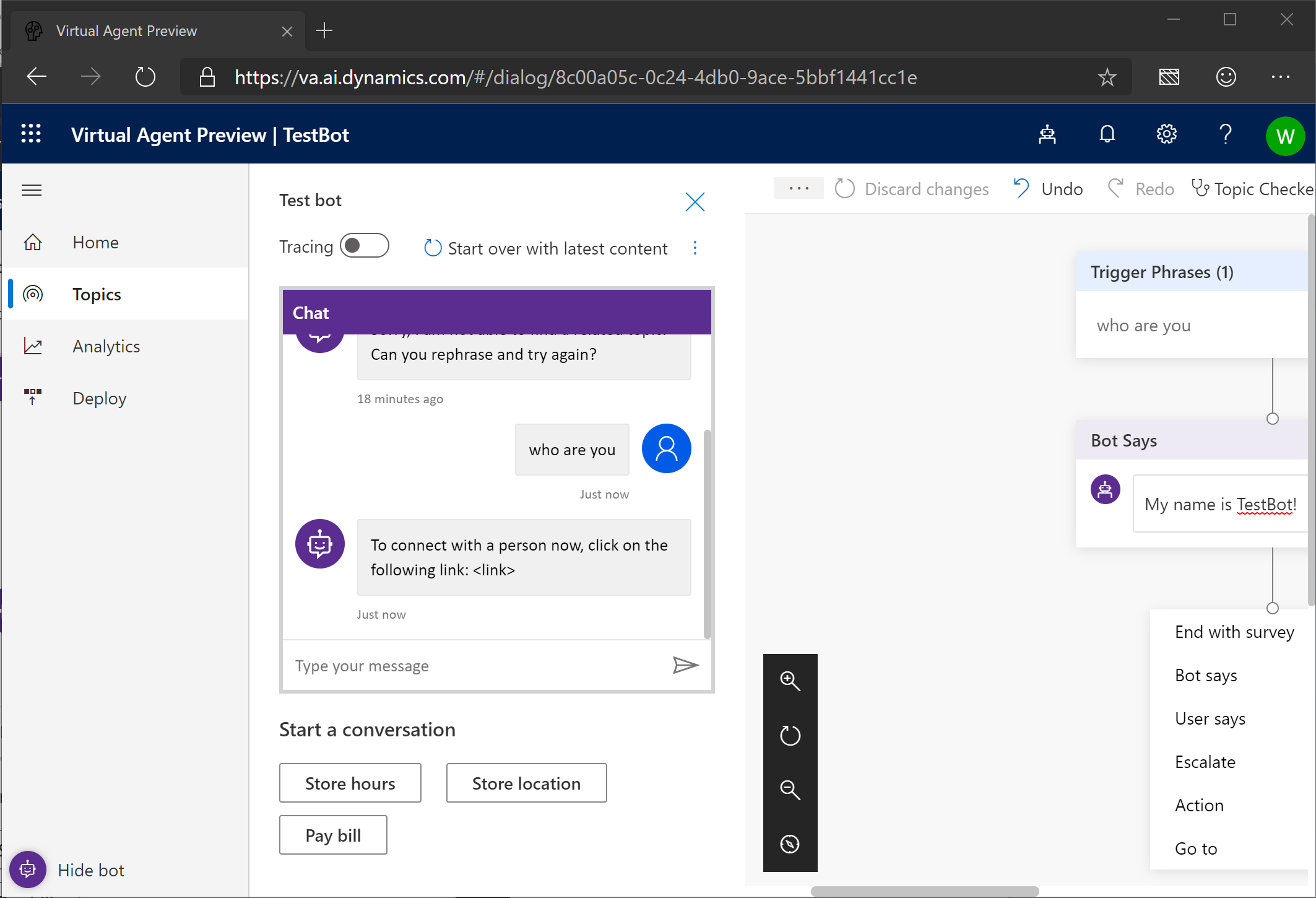
- Looks like the bot still doesn’t seem to know what we want to do. What could the problem be?
- We never told it that it should use the new information! Click “Start over with latest content”
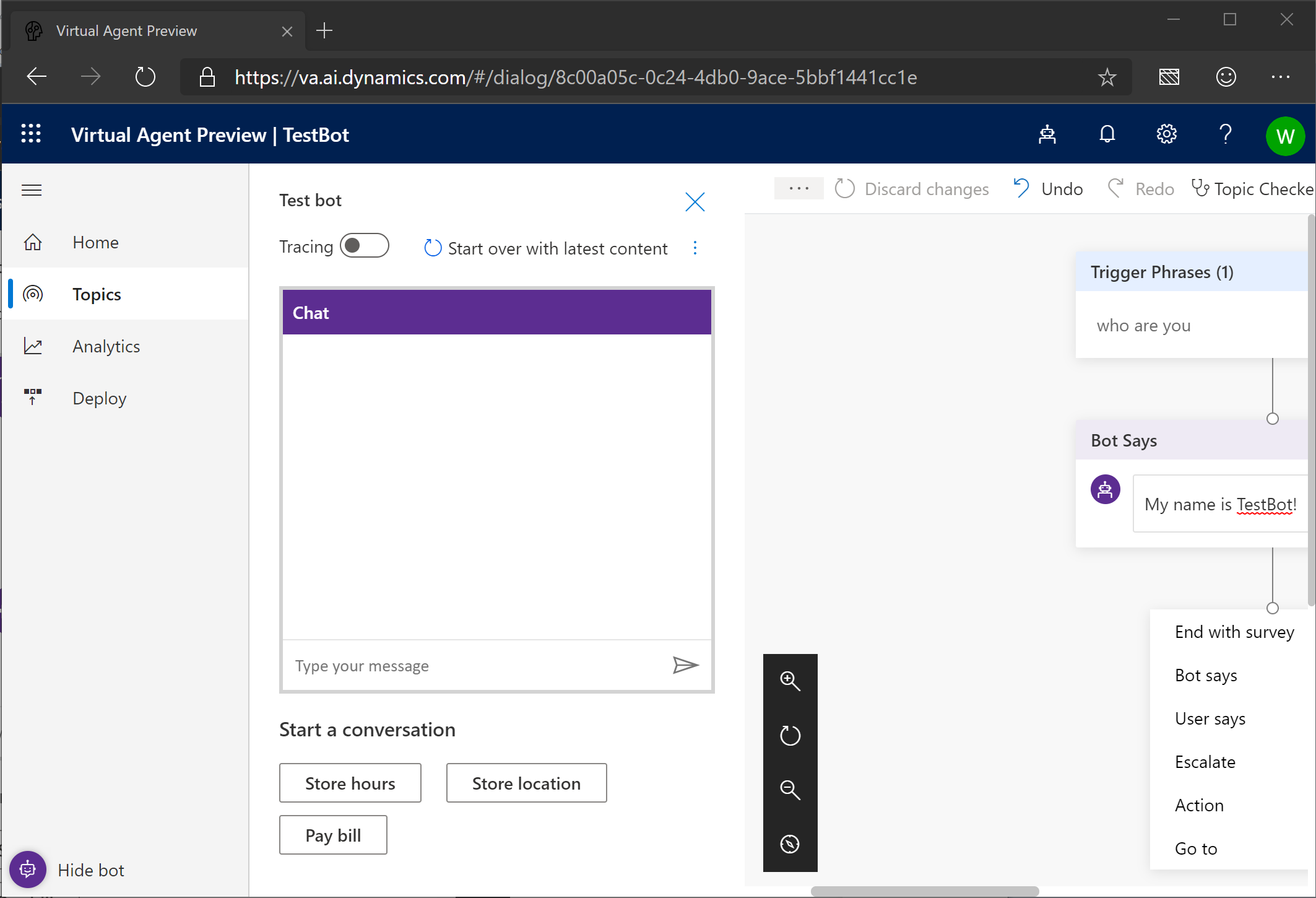
- Type in “who are you”
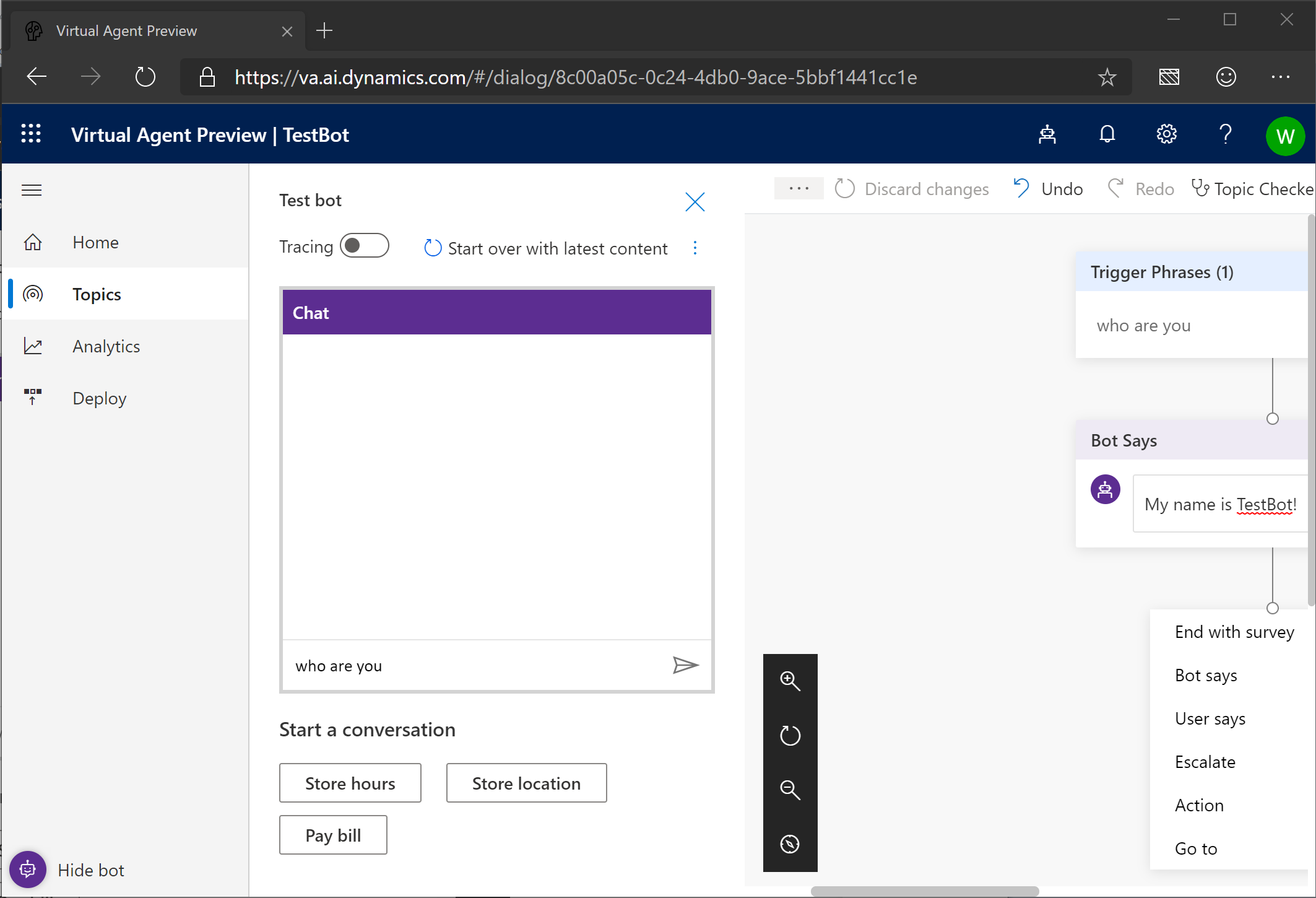
- Hit enter or click Send
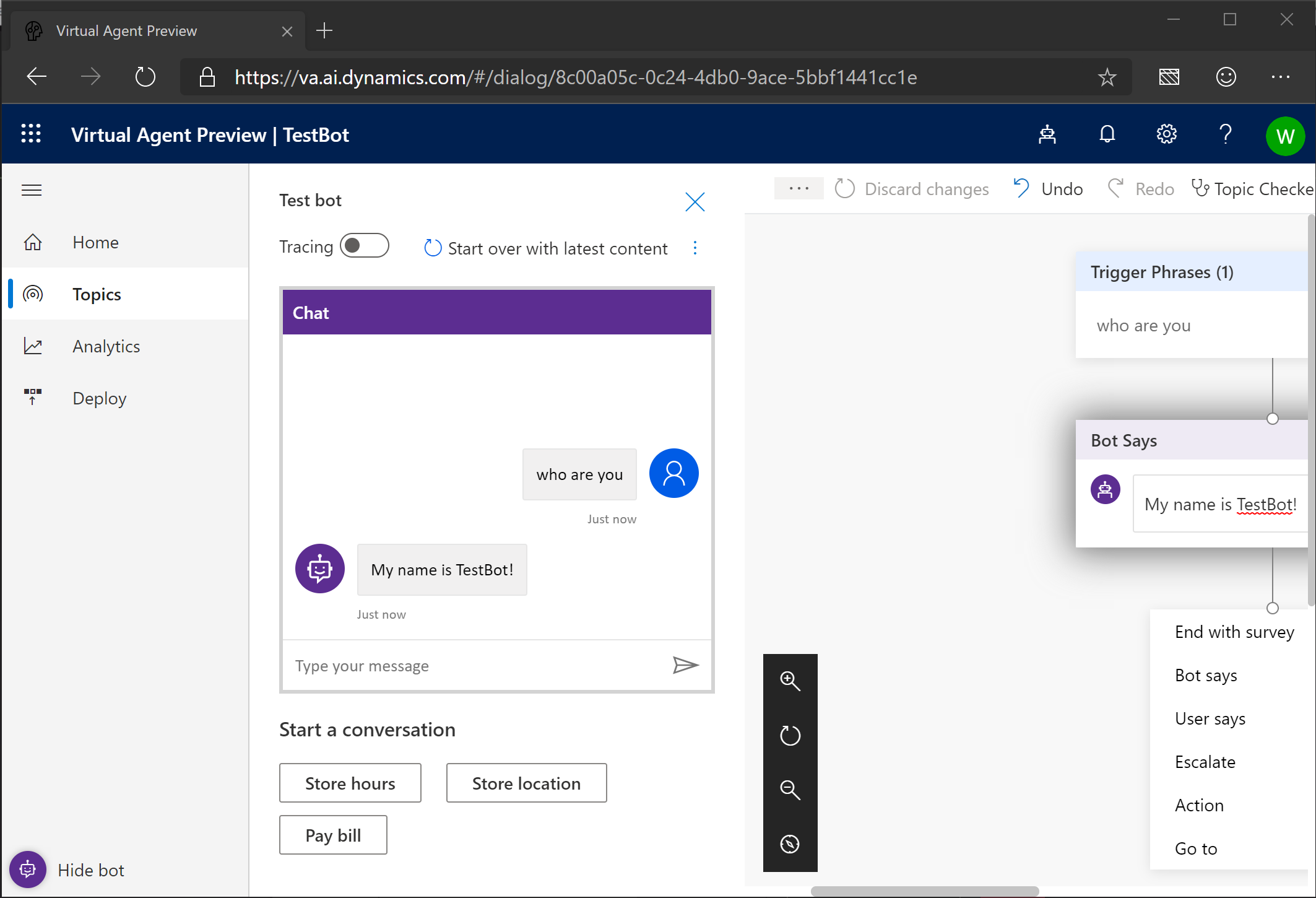
- Congratulations!!! You just made your bot smarter!
Hosted on GitHub Pages — Generated on Thu, 08 Aug 2019 14:38:46 +0000