Let’s walk thru the steps together to setup our environment
Open Internet Browser (InPrivate mode recommended)
Navigate to https://powerapps.microsoft.com/en-us/communityplan/
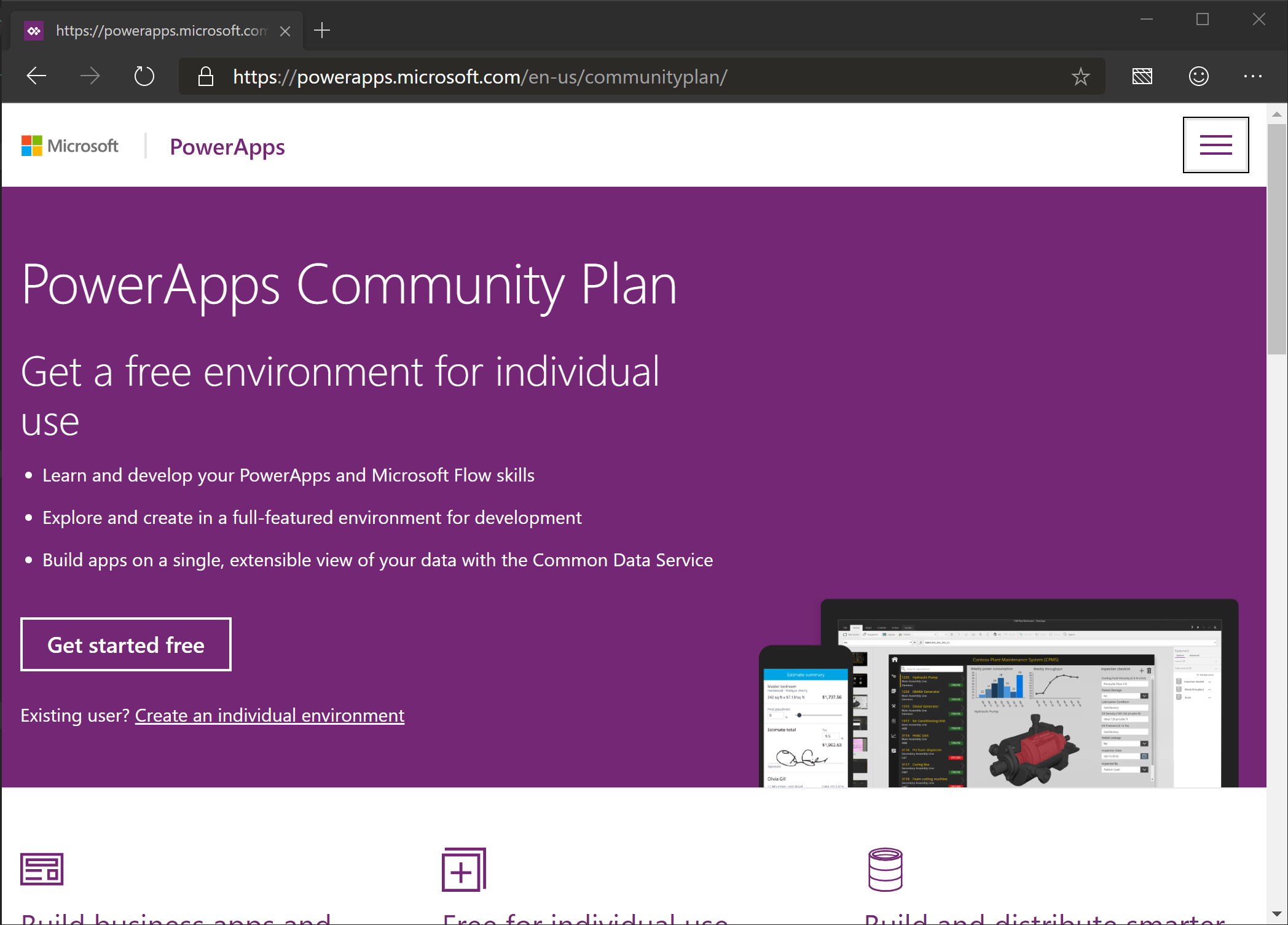
Click Get Started Free
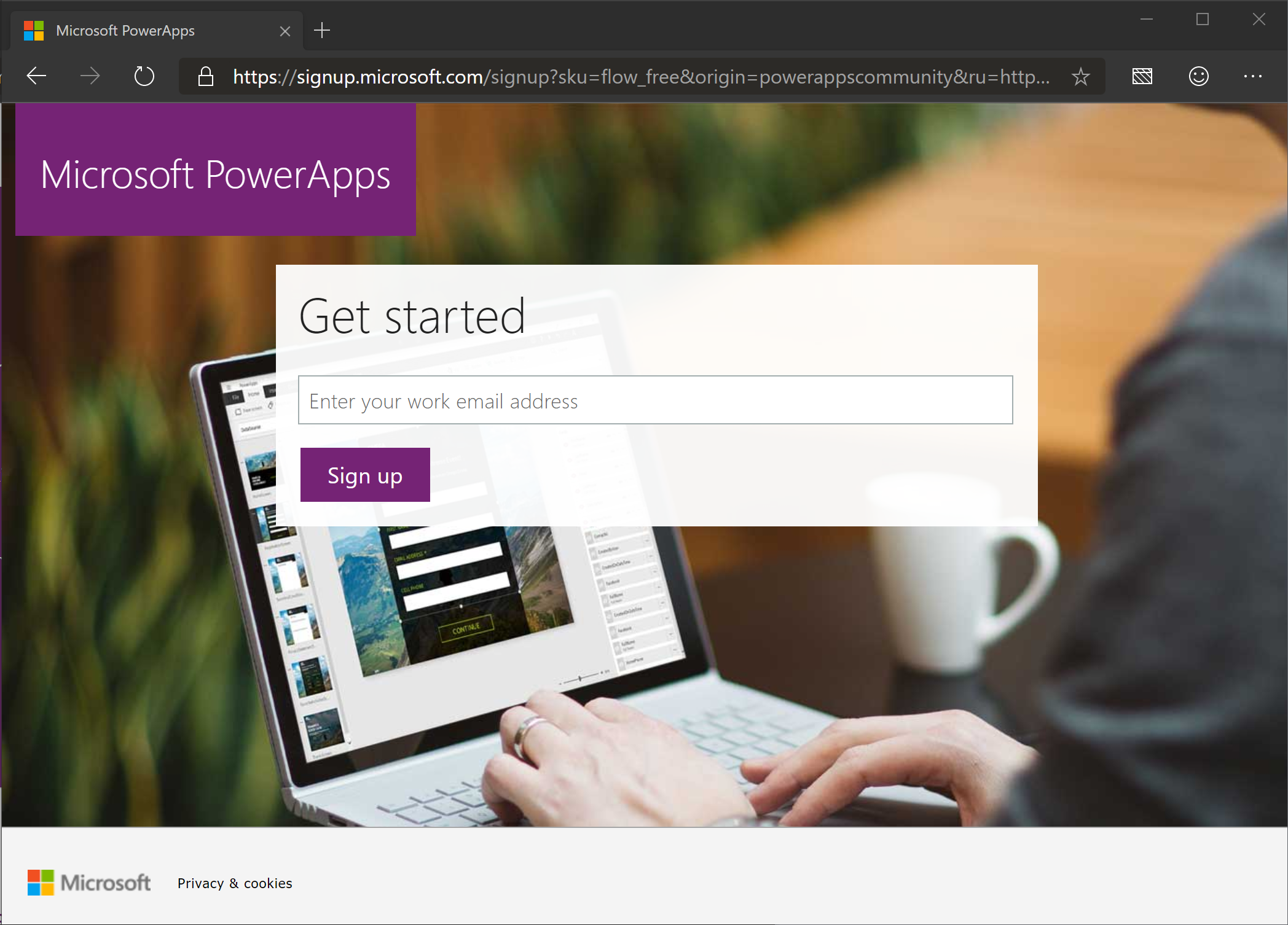
Enter the user name that was provided to you by the instructor.
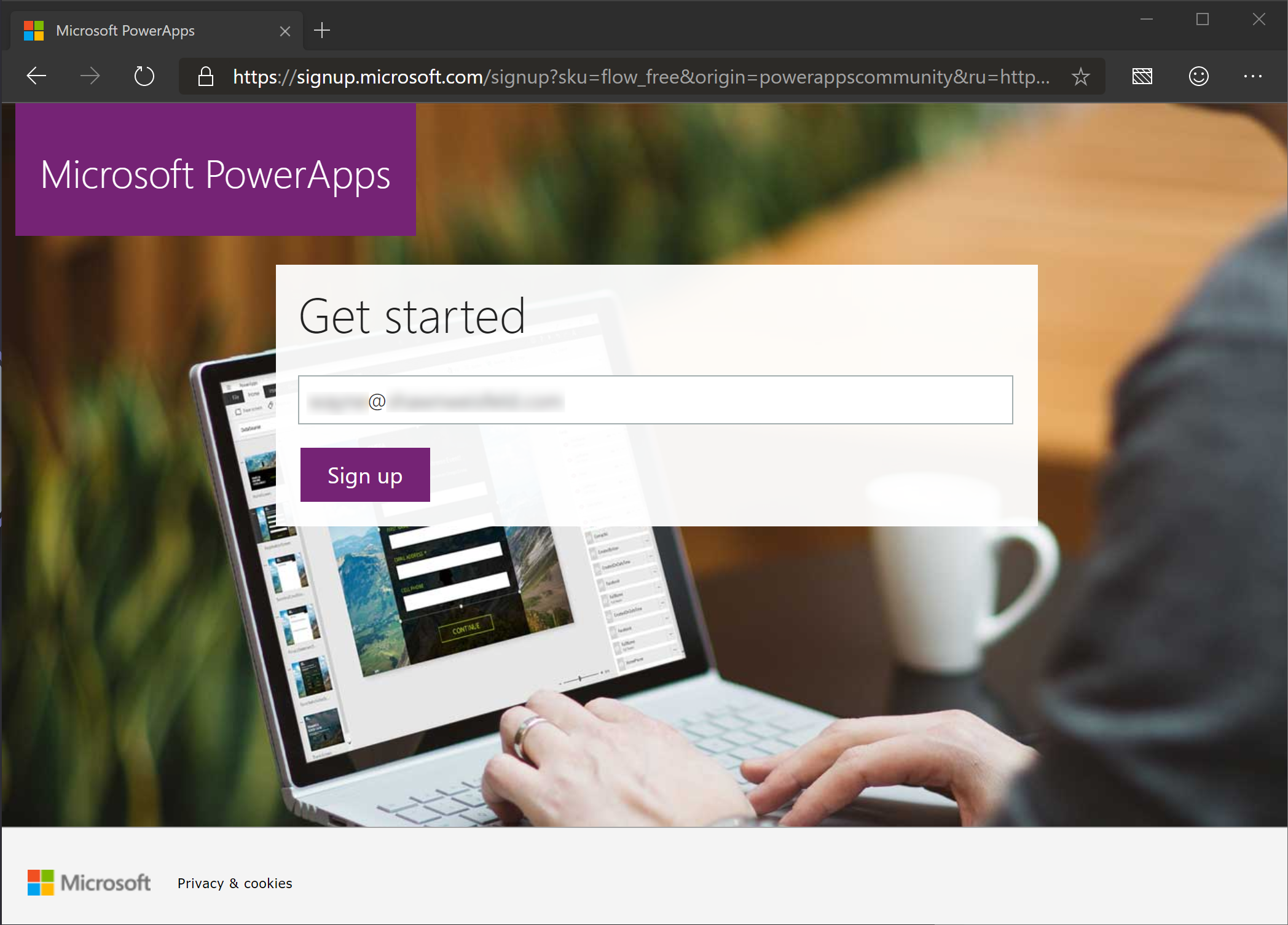
Click “Sign up”

Click “Sign in”
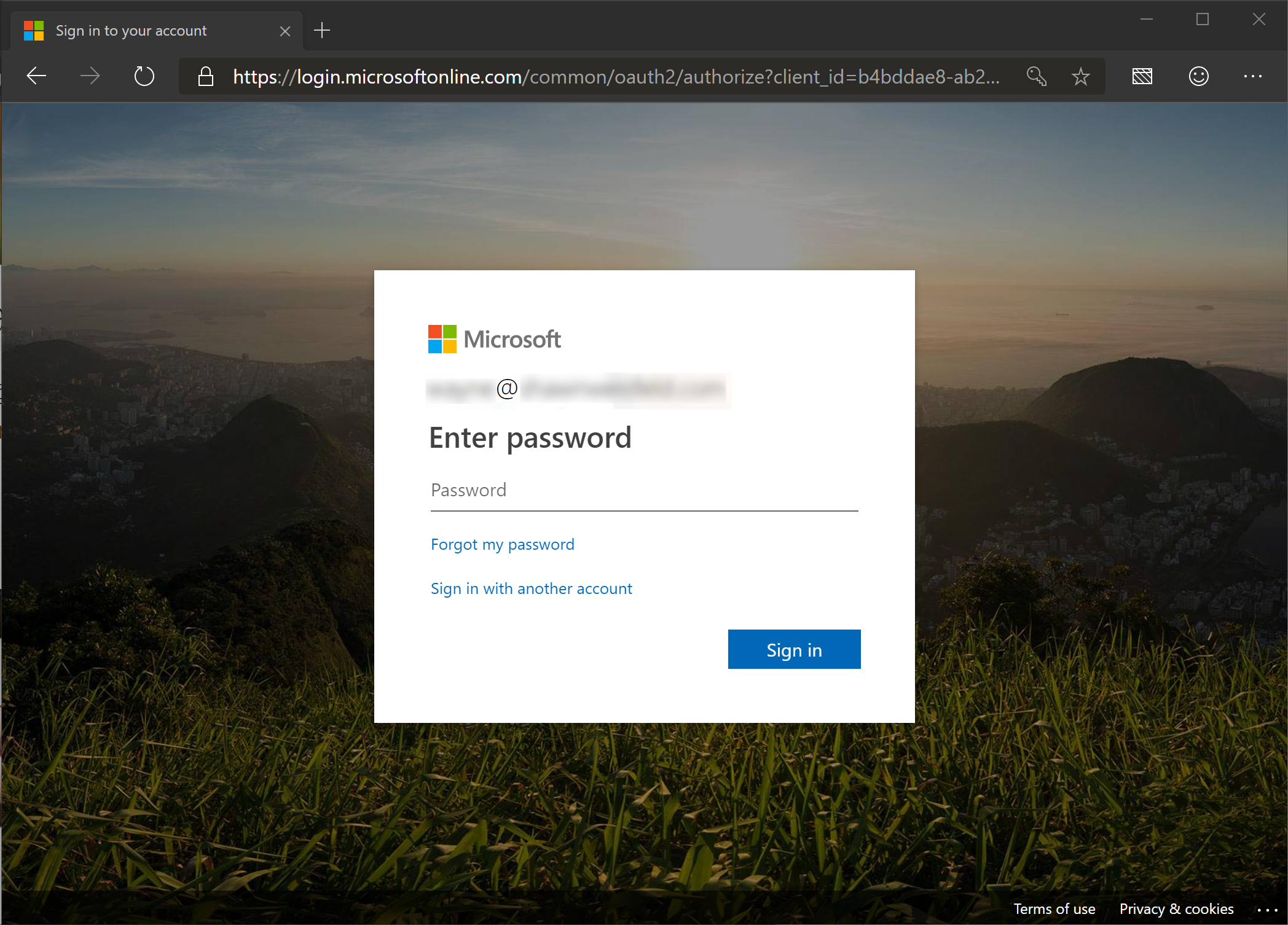
Enter your password
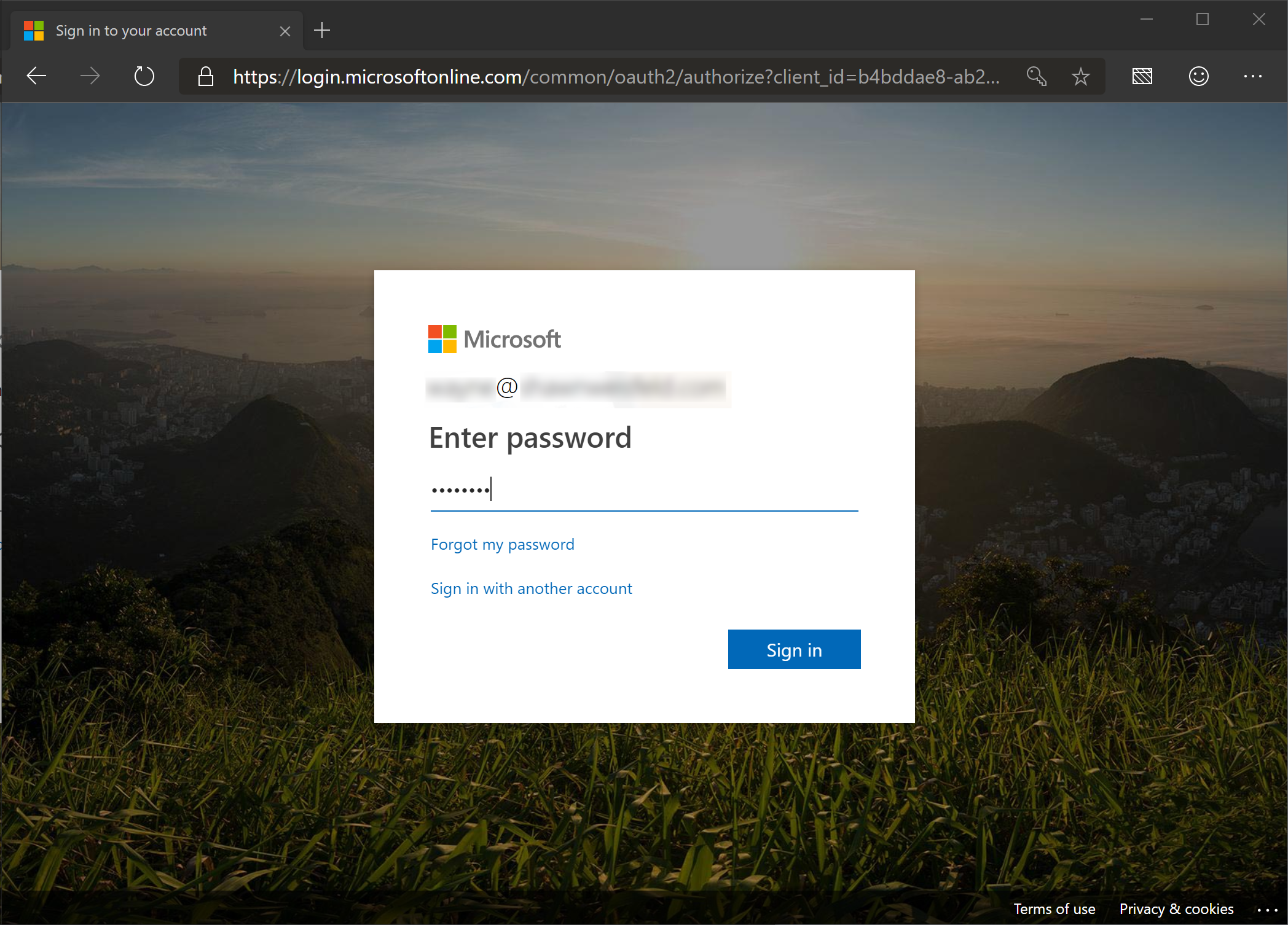
Click “Sign in”
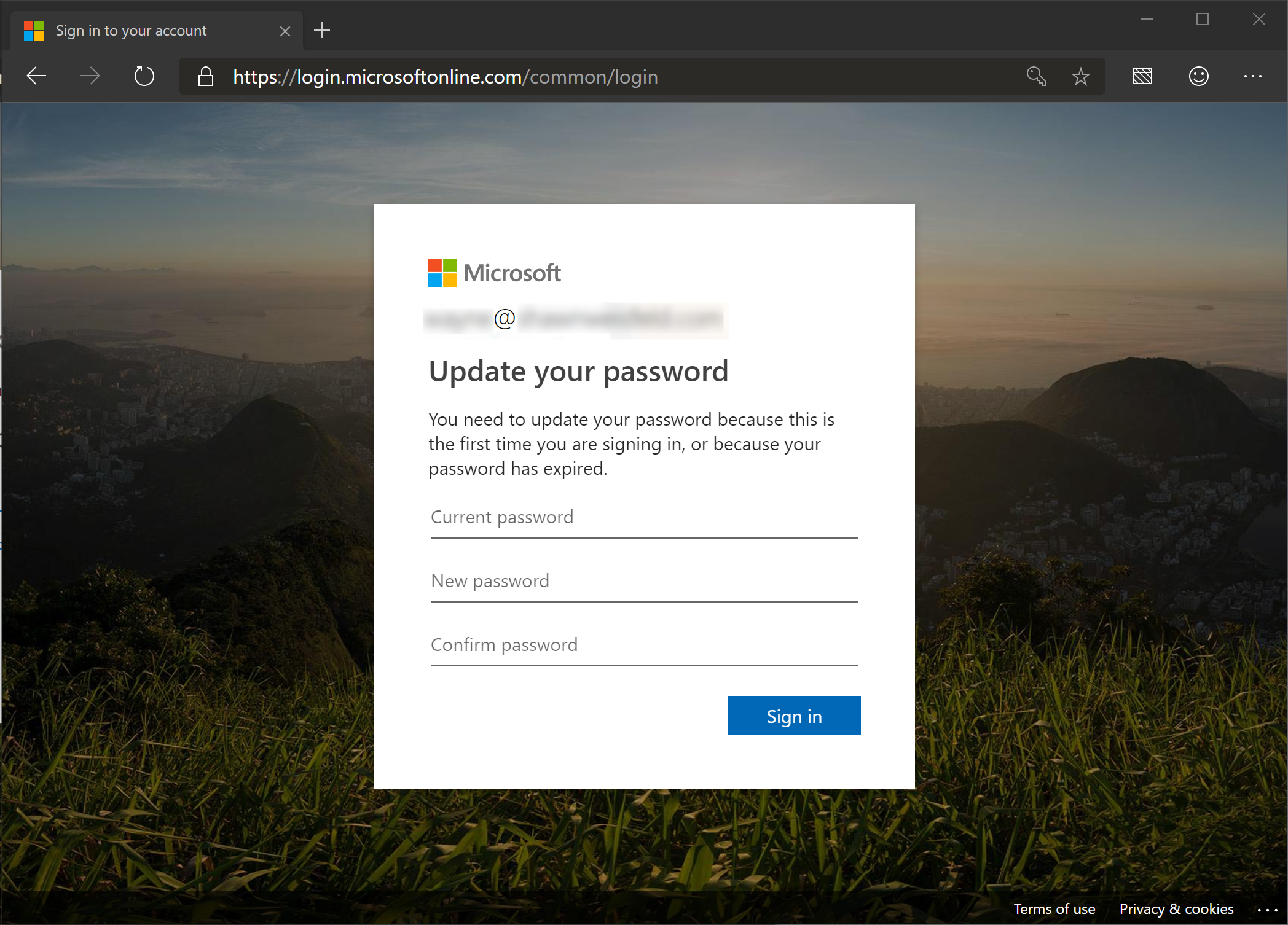
Fill in the current password.
Create a new password that you can remember and type it into the new password and confirm password boxes.
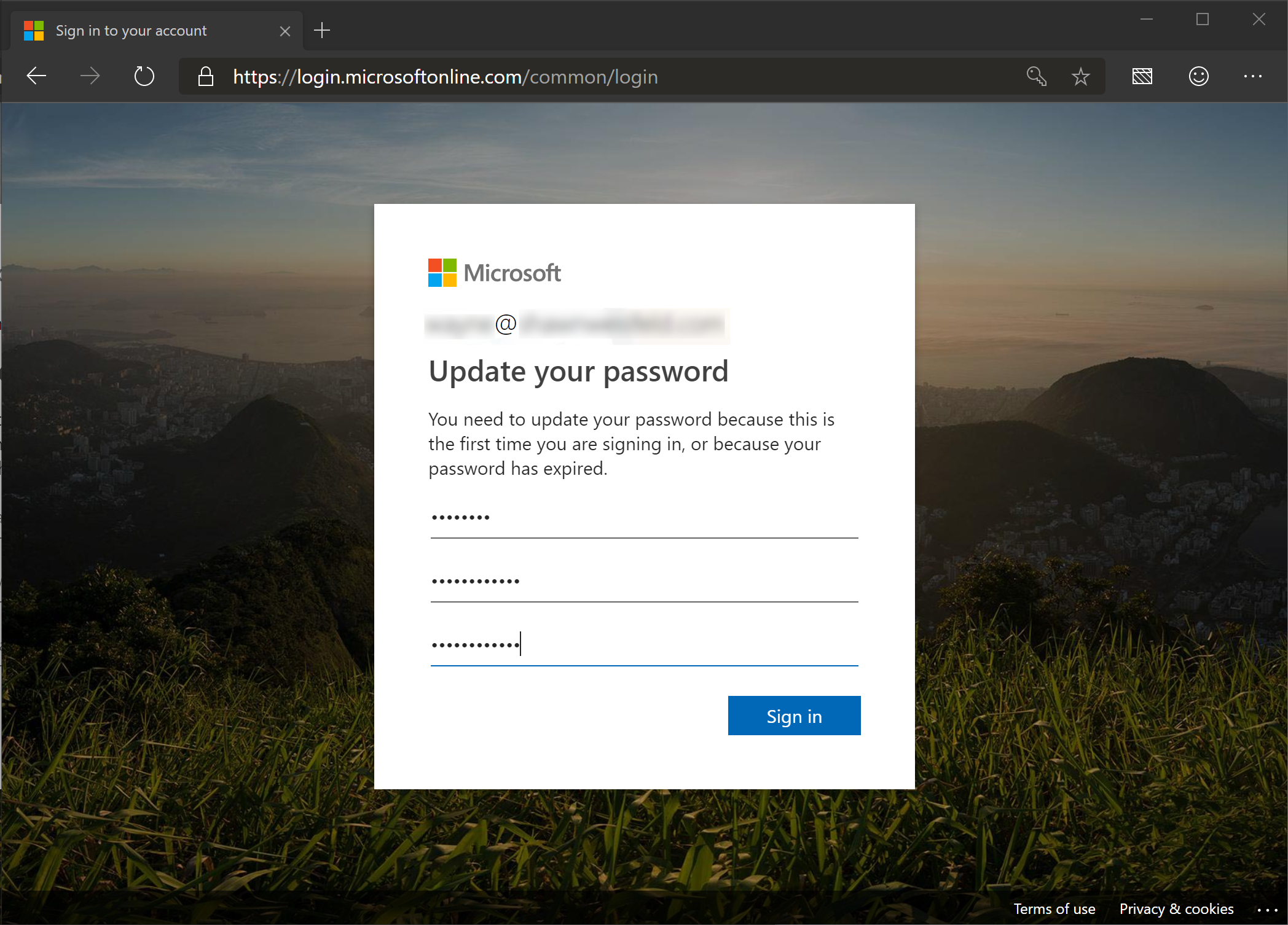
Click “Sign in”.
You may see this screen if the password you chose did not meet the password complexity requirements.
If so, create a password that meets the requirements and put it into the last two password boxes.
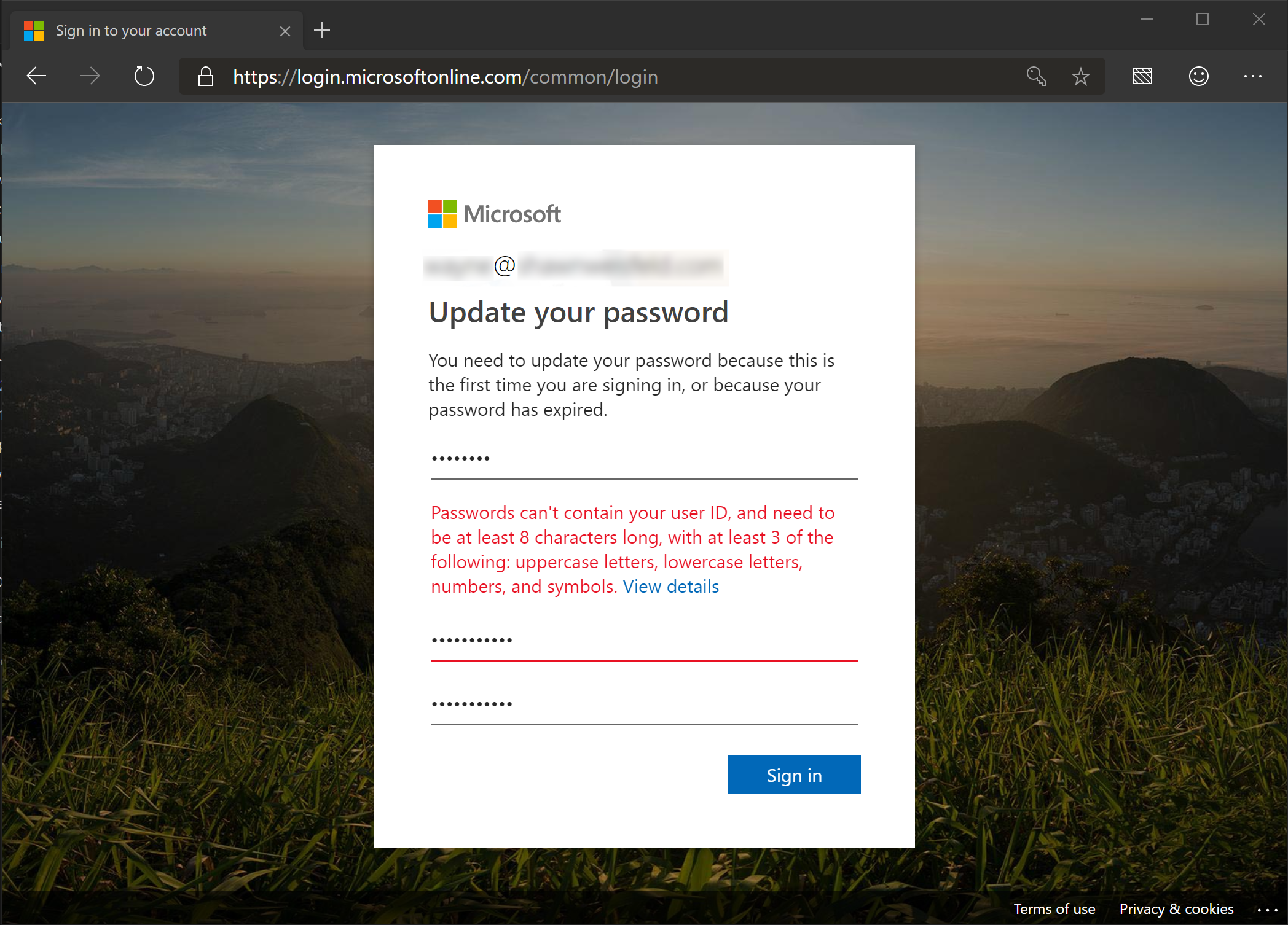
Click “Sign in”

Click “Start”
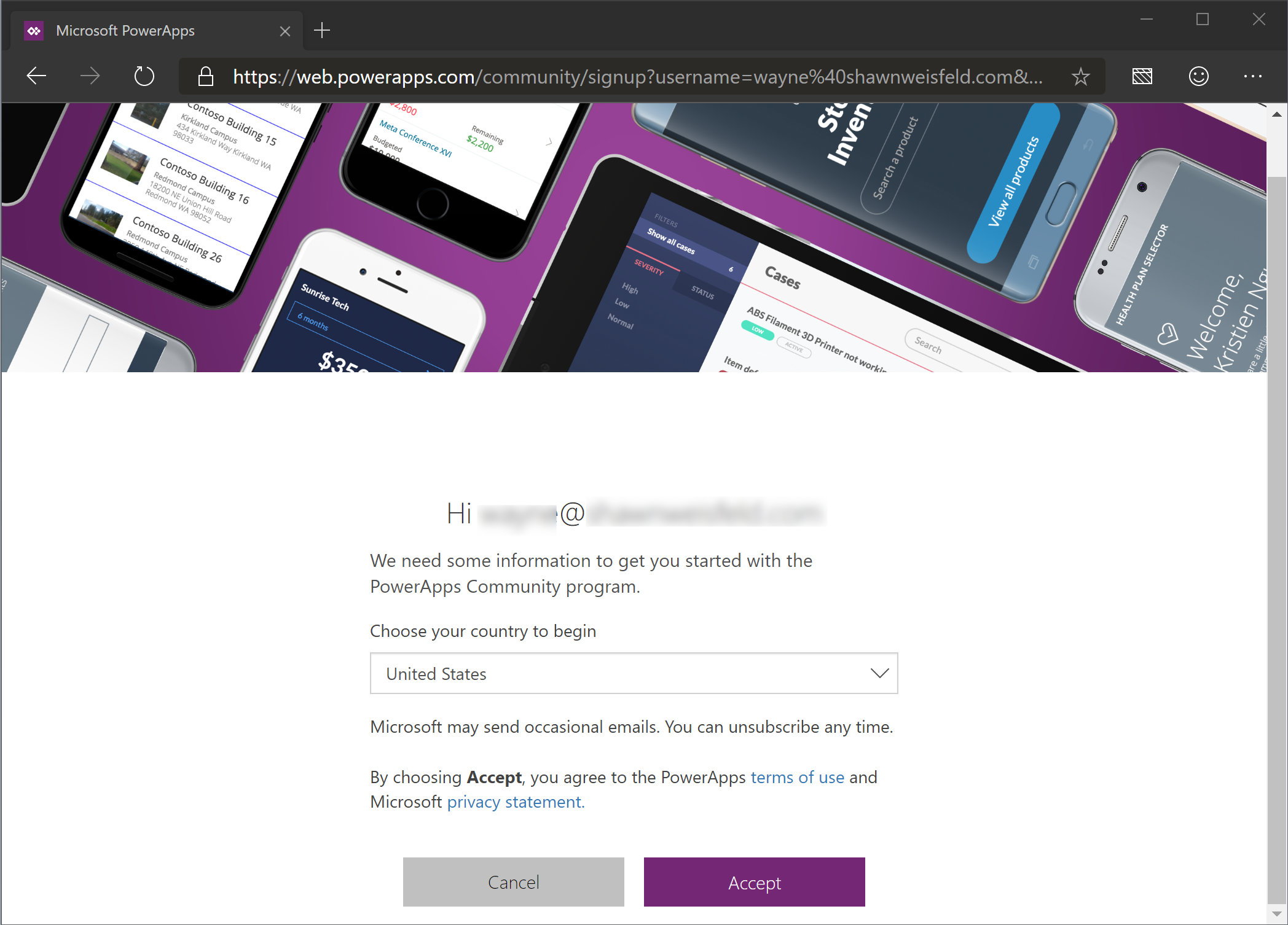
Click “Accept”
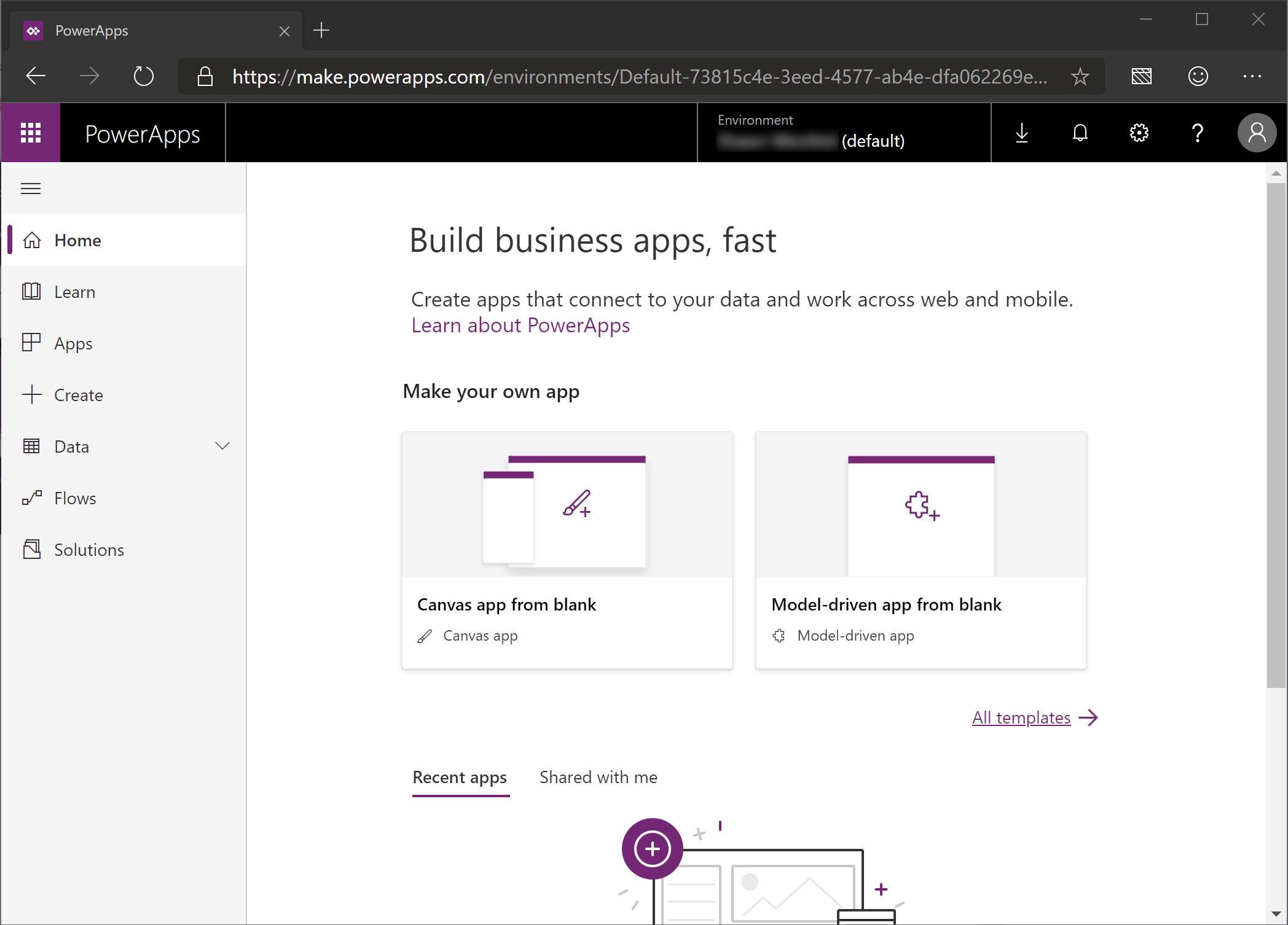
You are now in the organizational environment.
Click in the area that says Environment to open the drop down.
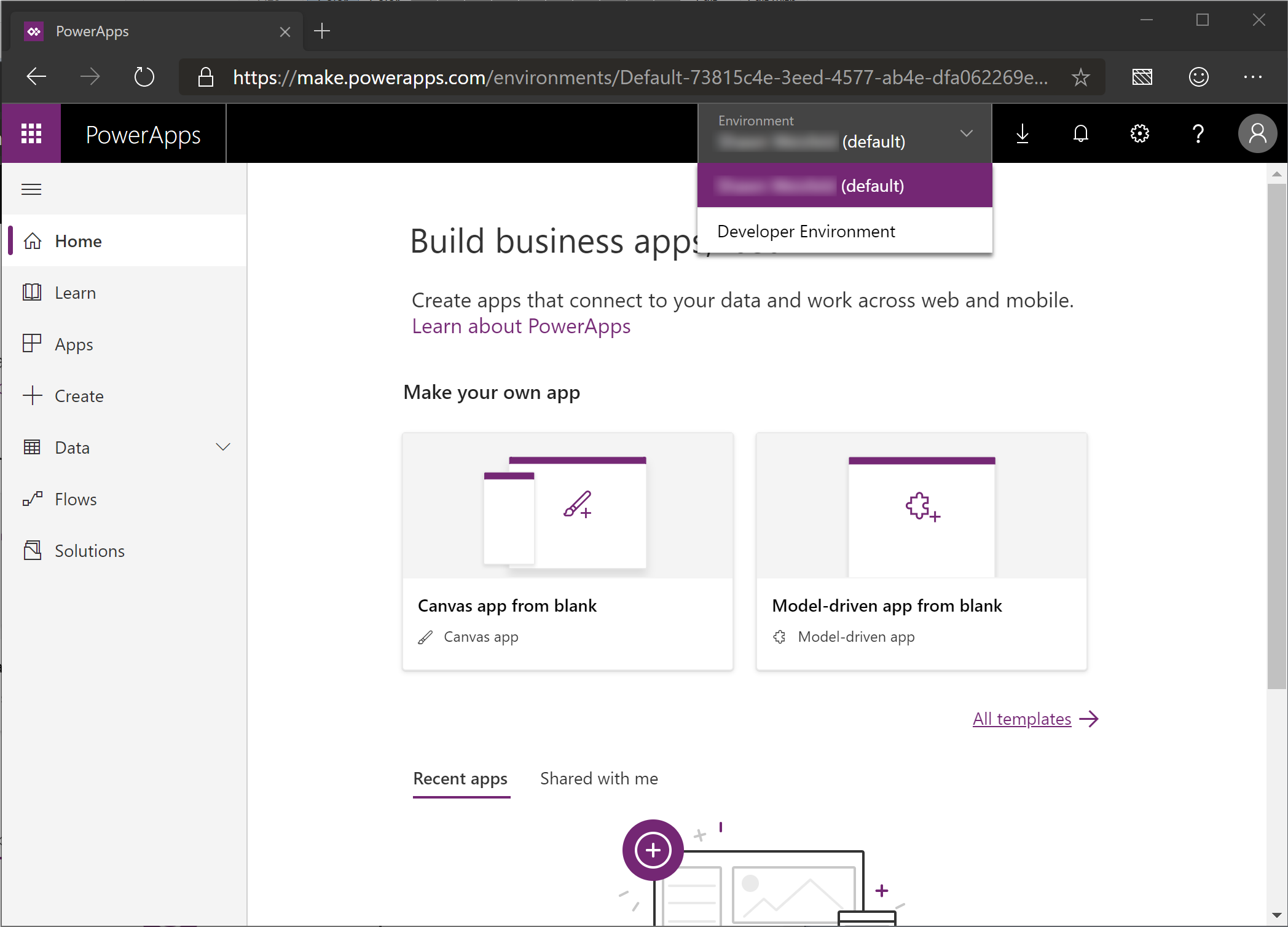
Click the developer environment.
The environment should now say Developer Environment.
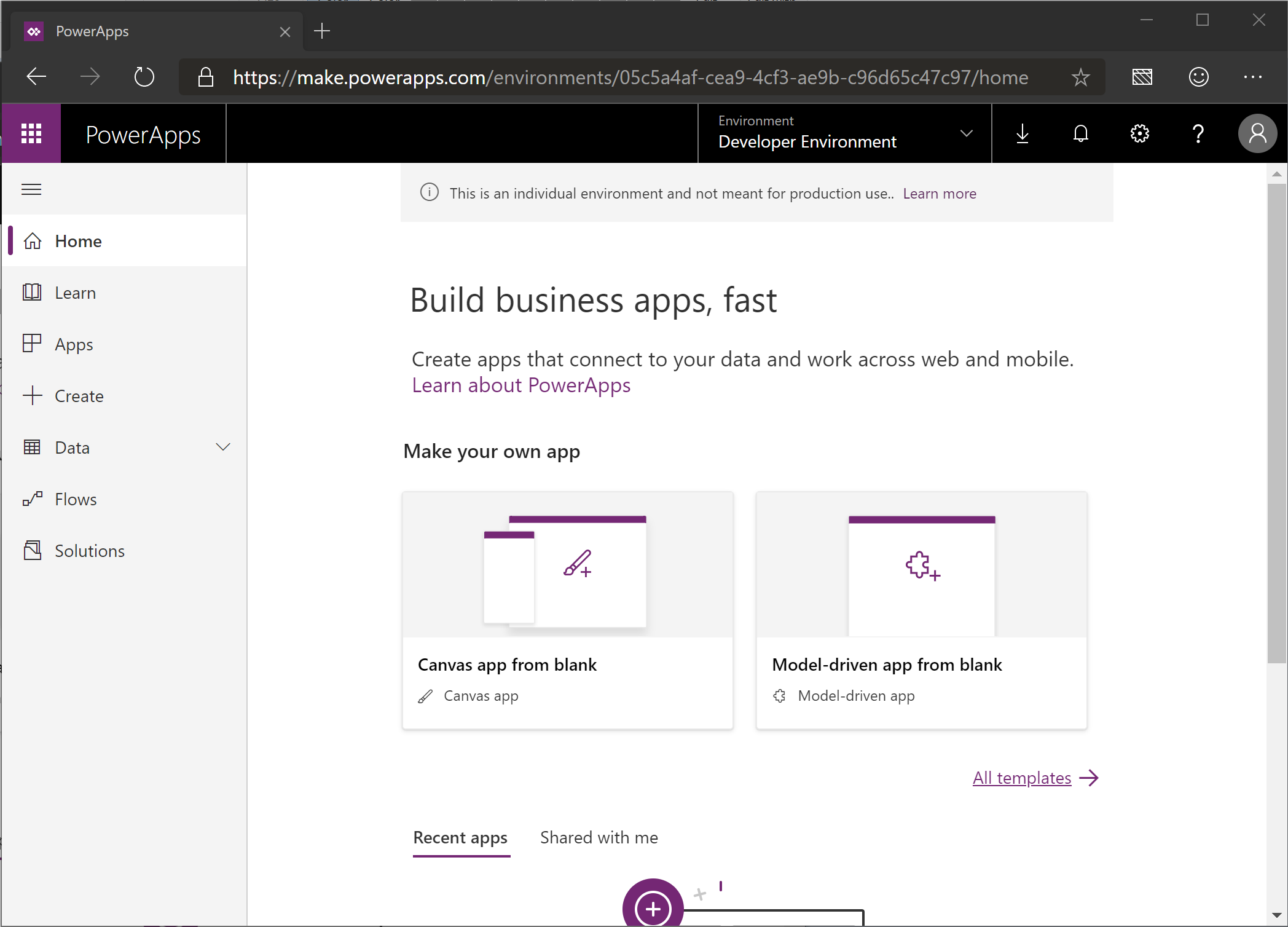
Click “Solutions” on the left side of the screen.
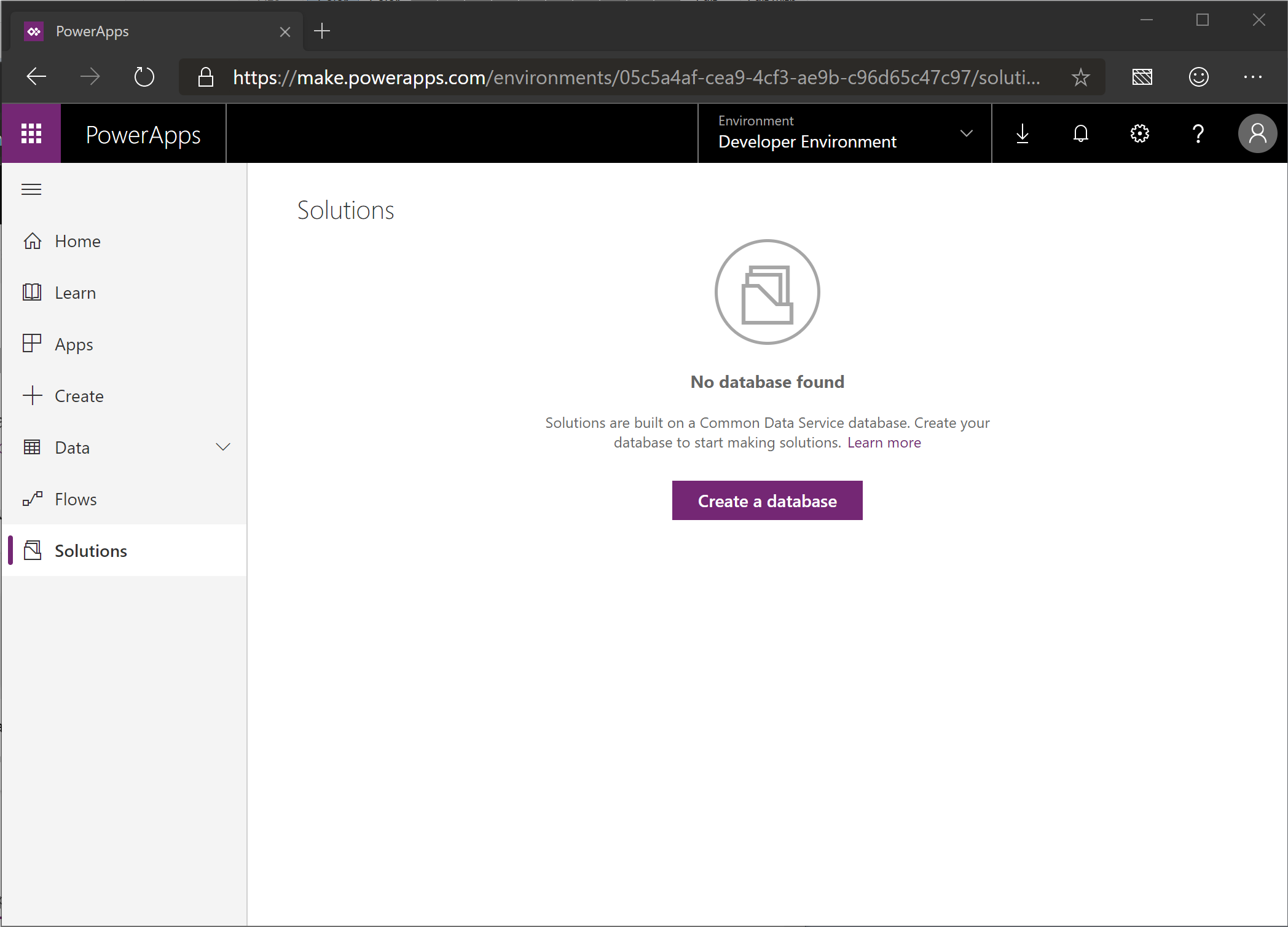
Click “Create Database”
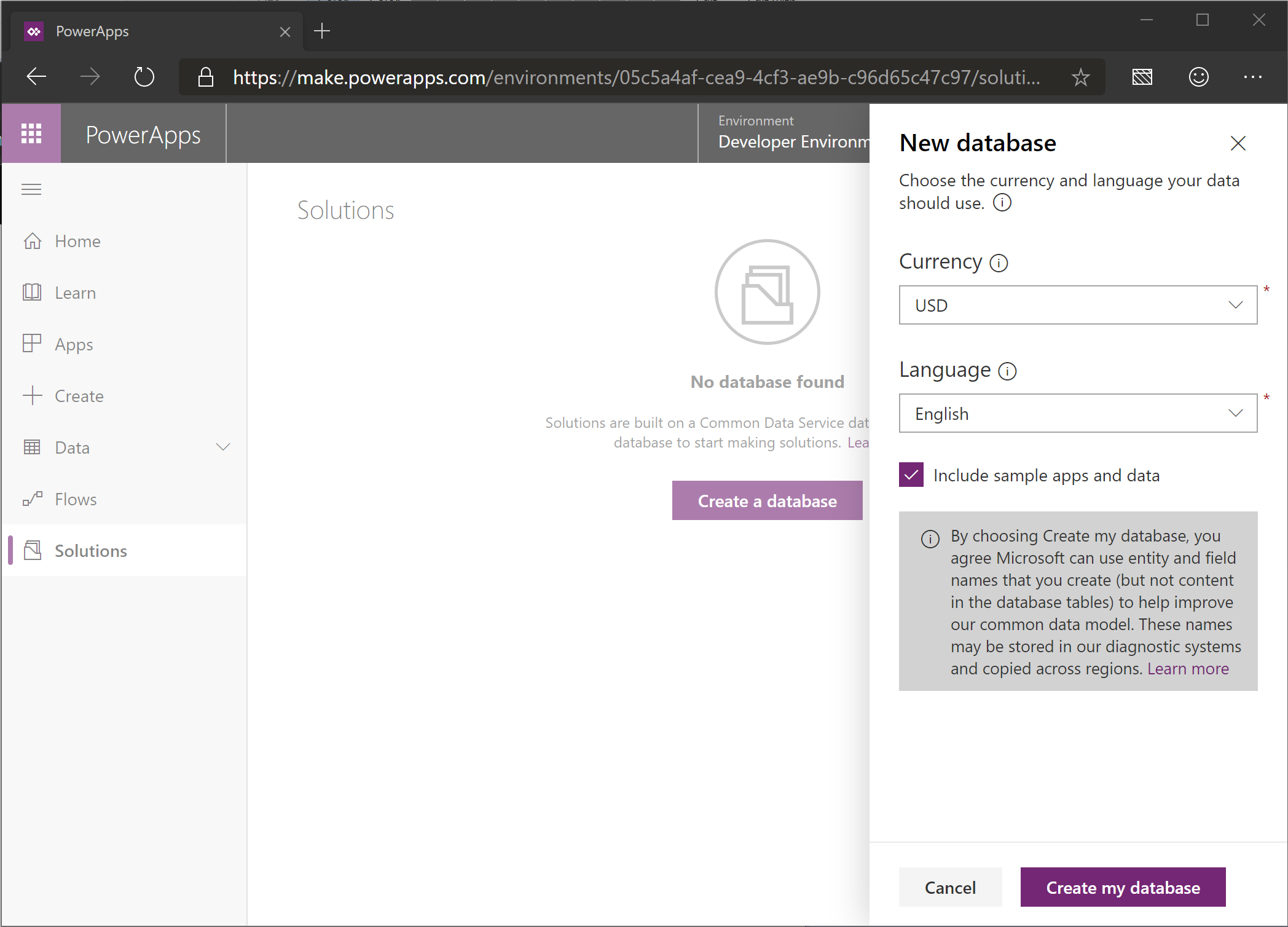
Change the currency to USD.
Change the language to English.
Make sure the “Include sample apps and data” checkbox is selected.
Click create my database.
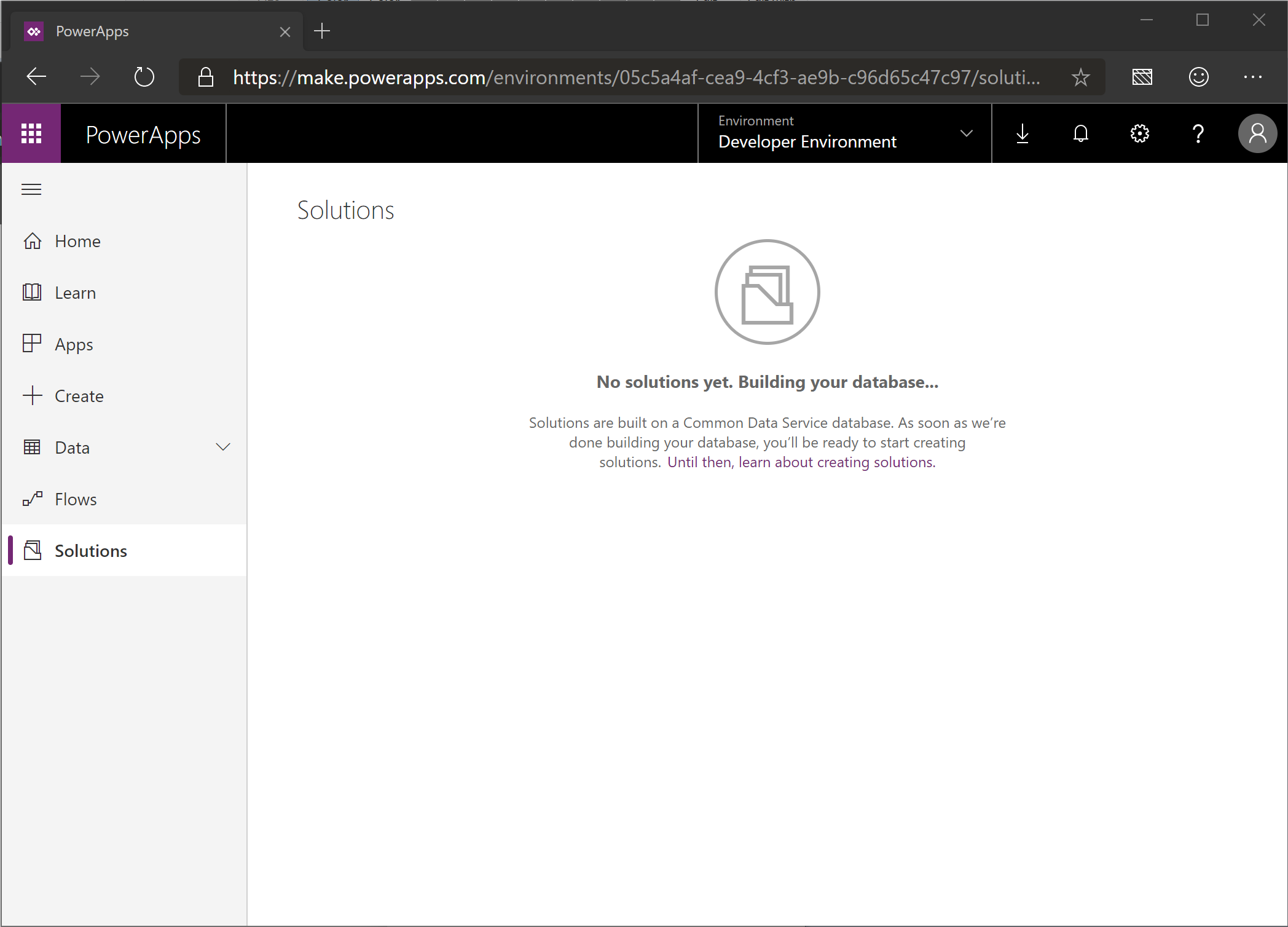
Wait a few minutes and then refresh the page until the Environment has a “(“ in it.
Congratulations! Your environment has now been set up!